Data recovery is the process of salvaging data from damaged, failed, corrupted, or inaccessible secondary storage media when it cannot be accessed normally. Wikipedia
Data recovery sounds like complicated and need more technical skills to accomplish it. Yes it can be such process in some cases like forensic data recovery. Most of the cases are fairly simple and you could have done it by user self or knowing the basics of data recovery methods can save your data well and money. To start with lets see what are the possible data recovery scenarios.
Simplest and most common situation can be recover deleted a file/files or folder. (undelete data recovery)
As soon as you have notice that you have deleted a file that should not be deleted STOP what you do with your computer.
Copying files or any other activity will override the deleted file and it will be complicated and costly task to recover the file. Reason behind it is even after deleting a file (from recycle bin) it will not erase from the hard drive and it can be recovered easily. By adding more files or copying files or performing some actions on on your computer can overwrite these deleted file.
Another common case of data recovery is due to operating system crash. You will have lost direct access to your files and folders as operating system dose not start.
Do not try to format your hard drive or reinstall operating system or run recovery disks.
You can easily get access to your files and folder using Live CD such as Slax. Slax CD will boot your computer without doing any changes to your hard drives and provide you a graphical user interface with all the needed functions.
Copy files to external hard drive and then you can install.
Then there might be quite possible cases with corrupting the hard disk file systems or hardware problems with the hard drive which will definitely look for professional data recovery companies or service. However, that is going to cost you a bit. First question to be asked is how much the data going to worth? Can I move forward without the data? and if you really think it is really really worth spending couple of thousands dollars then do not try anything to fix the problem but find a good data recovery company that suits your budget. Trying to start hard drive with problems can cause more damage to it and will cost more to recover data or make it impossible to recover it.
Lets move it further with more complicated methods and tools (Such as HELIX Forensic Data Recovery Tool ) that you can use to recover data in future posts.

Monday, August 31, 2009
Sunday, August 30, 2009
[Windows 7 Tweaks] Create new Virtual Hard drive
There is another cool feature in Windows 7. You can creat a virtual hard drive (VHD). This is pretty much comes in handy when you want to creat a driver after you install Windows 7. It is not that hard but need to complete couple of steps. Lets see how you can create a new virtual hard drive in Windows 7.
How to create a Virtual Hard Drive in Windows 7?
1. Go to Computer Management
Go to Control Panel
Go to System and Security
Go to Administrative
Click on Computer Management
2. Click on Disk Management under Storage
3. Under Actions click on More Action and click on Create VHD
4. Specify Location and Virtual hard disk size and leave it in Fixed size as Recommended. Click OK will create a virtual drive without any driver letter or file format.
5. Right click on Unallocated Disk click on New Simple Volume
6. Now you will come to Welcome Screen (Welcome to the New Simple Volume Wizard)
7. Then you can specify Volume size in MBs
8. Select Format this volume with the following settings.
You can select file system or any volume label
9. Assign the following drive letter you like.
10. Comes to final stage (Completing the New Simple Volume Wizard) and click Finish.
Thats it now click on start button and go to My Computer and you will see a new hard drive in the list.
How to create a Virtual Hard Drive in Windows 7?
1. Go to Computer Management
Go to Control Panel
Go to System and Security
Go to Administrative
Click on Computer Management
2. Click on Disk Management under Storage
3. Under Actions click on More Action and click on Create VHD
4. Specify Location and Virtual hard disk size and leave it in Fixed size as Recommended. Click OK will create a virtual drive without any driver letter or file format.
5. Right click on Unallocated Disk click on New Simple Volume
6. Now you will come to Welcome Screen (Welcome to the New Simple Volume Wizard)
7. Then you can specify Volume size in MBs
8. Select Format this volume with the following settings.
You can select file system or any volume label
9. Assign the following drive letter you like.
10. Comes to final stage (Completing the New Simple Volume Wizard) and click Finish.
Thats it now click on start button and go to My Computer and you will see a new hard drive in the list.
Labels:
Windows 7

[Windows7 Tweak] Move User Folders to New Location
Last post we discussed how to move Documents folder to a new location in Windows 7. Lets have a look how to move user folders (Desktop, Contacts, Downloads, MyDocuments and etc)
There is a small confusion. In Windows 7 there are two different folders. They are Documents and MyDocument folder. Documents folder is the virtual folder where you can add more folders to it and keep it as one folder. You can find more such virtual directories in Libraries for Documents, Music, Pictures and Videos. That is different from user folders.
In Windows XP you need to change it path from Registry. However in Windows 7 it is much easier. In each user folder you want to move right click on the folder and select the Location tab and click on Move button and select the new path will move the folder to new location. You need to change any registry values.
There is a small confusion. In Windows 7 there are two different folders. They are Documents and MyDocument folder. Documents folder is the virtual folder where you can add more folders to it and keep it as one folder. You can find more such virtual directories in Libraries for Documents, Music, Pictures and Videos. That is different from user folders.
In Windows XP you need to change it path from Registry. However in Windows 7 it is much easier. In each user folder you want to move right click on the folder and select the Location tab and click on Move button and select the new path will move the folder to new location. You need to change any registry values.
Labels:
Windows 7
Thursday, August 27, 2009
Create a system repair disk Windows7
Create a system repair disk is another simle function available in Windows7. It can be used to boot computer and Windows system recovery tools that can help you recover Windows from a serious error or restore your computer from a system image. I think this is some thing we missed in windows Vista.
How to create a system repair disk?
1. Click Start > All Programs > Maintenance > Create a System repair disc.

2. Insert a Disk and click Create disc
3. Withing couple of seconds it will burn a recovery CD for you.
How to create a system repair disk?
1. Click Start > All Programs > Maintenance > Create a System repair disc.
2. Insert a Disk and click Create disc
3. Withing couple of seconds it will burn a recovery CD for you.
Labels:
Windows 7
Wednesday, August 26, 2009
Windows 7 tweaks Change Documents Path
Lets discuss some basic Windows7 tweaks. Changing Documents path. That's quite useful if you have two or more partitions you can move all user files to one partition and keep the Windows partition free of user files. Also it will be a good way to protect your files in any case something happened to windows7 as well as easy to take backups.
Changing Documents path is quite simple but bit different from Windows XP or Windows Vista.
1. Right Click on Documents folder. You can right click on Documents folder in start menu.
2. It is bit different to other Windows versions.
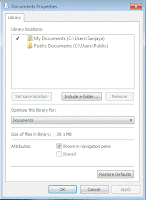
3. Click on the Include a folder and select the new path. This is something new in Windows7. You can select more than one folder for Documents folder. In Windows7 Documents folder acts as a virtual folder.
4. You can delete the default folders by right click on the folder and select remove.
5. Then right click on the main folder and select set as default location to save.
It is simple and but bit more advanced than Windows XP or Windows Vista.
It is simple and but bit more advanced than Windows XP or Windows Vista.
Never miss your friend with Gmail contact chooser
Now Gmail will start displaying all the email list when you click on To, Cc or Bcc links. Contact chooser will show all contacts and you can select by click on each contact or select all. So you will never miss any of your friends on a group invitation or sharing a interesting email.
Google giving more information about this new feature...
If you use contact groups, your groups will appear in a drop-down menu in the contact chooser, so you can select contacts from the groups you've already created. And if you happen to use Gmail in Chinese, Japanese or Korean, being able to pick from your list of contacts should be particularly useful since auto-complete doesn't offer the same search as you type experience that it does in other languages.
Official Gmail Blog: Composing a message? Try the contact chooser
If you use contact groups, your groups will appear in a drop-down menu in the contact chooser, so you can select contacts from the groups you've already created. And if you happen to use Gmail in Chinese, Japanese or Korean, being able to pick from your list of contacts should be particularly useful since auto-complete doesn't offer the same search as you type experience that it does in other languages.
Tuesday, August 25, 2009
CrazzyCool eBook on Hacks Tricks and Tweaks
Crazzycool eBook is been up in email subscription for some times and finally decide to have a direct link to download pluse links to torrent sites. Now you can download the printer friendly computer hacks tricks and tweaks in PDF eBook that you can have it on your Kindle .
.

This is simple eBook consists of many useful computer and Internet hacks that will be really useful in day to day life.
Download Computer Hacks Tricks eBook for FREE
We would like to hear your feed back on this eBook. We can improve our future eBooks.
.This is simple eBook consists of many useful computer and Internet hacks that will be really useful in day to day life.
Download Computer Hacks Tricks eBook for FREE
We would like to hear your feed back on this eBook. We can improve our future eBooks.
Labels:
ebooks,
Free Download
Monday, August 24, 2009
Backup Your Files Then You Must Try SyncBack
Last post I looked into the important things that we need to finalize before taking backups. After you decide What, Where and When to take backups, you will require proper file backup software that will meet all your requirements. When it comes to personal use I would like a free, simple tool that will silently back up my files without giving problems.
SyncBack is a simple but powerful software that can be used to backup and synchronize files and folder. It can access files and folders from computers from your local area network(LAN) or wide area network(WAN). Also, it can backup your files to a FTP account. You can create many profiles to meet different requirements. For example you can create one profile to backup My Documents and another one to backup Music and Movie folders. Also, SyncBack can be used to synchronize files between two or more computers. Then you can schedule each profile, so it will backup or sync your file frequently.
Full featured SyncBack is available to download for free. It Support Windows 7, Vista, Windows XP, Windows 2008, Windows 2003, Windows 2000, Windows 98, 98SE, ME, and NT 4.However Windows 95 is not supported.
 After you download and install SyncBack make sure you create couple of profiles to suite the files you have decided to take backups. For example you can create profiles base on daily, weekly and monthly or base on the file location or file types.
If you create profiles daily, weekly and monthly schedule them accordingly. It is wise to choose a time that you do not use your computer. So, backup process will run smoothly and it will not slow down your computer or internet connection. Also, it you run regular backups make sure you give enough time in between each run to complete.
SyncBack is a simple but powerful software that can be used to backup and synchronize files and folder. It can access files and folders from computers from your local area network(LAN) or wide area network(WAN). Also, it can backup your files to a FTP account. You can create many profiles to meet different requirements. For example you can create one profile to backup My Documents and another one to backup Music and Movie folders. Also, SyncBack can be used to synchronize files between two or more computers. Then you can schedule each profile, so it will backup or sync your file frequently.
Full featured SyncBack is available to download for free. It Support Windows 7, Vista, Windows XP, Windows 2008, Windows 2003, Windows 2000, Windows 98, 98SE, ME, and NT 4.However Windows 95 is not supported.
After you download and install SyncBack make sure you create couple of profiles to suite the files you have decided to take backups. For example you can create profiles base on daily, weekly and monthly or base on the file location or file types. If you create profiles daily, weekly and monthly schedule them accordingly. It is wise to choose a time that you do not use your computer. So, backup process will run smoothly and it will not slow down your computer or internet connection. Also, it you run regular backups make sure you give enough time in between each run to complete.
Labels:
Backup,
Files,
Free,
Free Download,
FTP,
Software,
Synchronize
Cyber Crime
At the start I have been talking about how good if it is possible to do the things we do in real world in computer world.I think I have missed lot of things plus just discusses it as a fantasy or science fiction.
Copy and paste a nice lady you just saw or a expensive car just passed you would sounds like a miracle but it is not even impossible. Even it is not a direct Copy (CTR+C) and paste (CTR+V) process, clone is not a strange technology or even reverse construct a complex product is not that hard. This is totally different story as if people start to commit crimes in a way they do in the real world.
I am not talking about hacking in to a back system or steal credit card details or doing a DOS attack to stop a web service or deface a home page kind of crimes which is common in internet world. Thats what computer and internet security and forensic teach you how to prevent and find the evidence to catch the criminals. Do you think the cyber crimes going to limit from this point?
Information is key to success as well as way to destruction. Internet is never been like this before. With little help of social hacking you can find all the information a stranger wants to know. At least the information someone really need.
For example it is not hard to get your personal information such as full name, date of birth, favorite colour, movies you like to watch, your pets name, mothers/fathers name where you live or born and so on. How many social networks you have been singed into and how many of those profiles are protected? I am not worried about web server side protecting but making the profile public can expose all your information to anyone. Most of the information I have mentioned above can be seen in secret questions for password reset. Only difference is you get it as a question format for your password to be reset and anyone who has access to your social network profile will know the answers. Don't they?
Not like anything else people specially young generation believe and live in social networks. Provide all most all the possible facts about you and your family. Its all out there in cyber space.
This is just a simple example. Did you ever thought about your Google Account. Pretty much all your emails are with GMail. I am sure these emails contains passwords for other accounts, bank details, images of your identity cards all the conversation with your other contacts. Its all in one place. It is really easy as well as creating a high risk zone. You should protect it just like you protect your documents and identity. All other services you have with Google account, do I really have to mention. This is not to put any service down or scare you from using GMail. But more than services providers fault simple mistake you do can loose all your information or that can go into someone else hand. Can you create a new GMail account and will it be the same email account you had before.
Basic idea is there is a person (image of you) living in the cyber world. That person living in the cyber world reflect all about you and vice versa. Anything happened to your image in cyber world can effect you in the same manner or worst. There is a great chance and easier to do something bad for your cyber image as it is accessible in many ways. Someone who is only close by can touch you but anyone around the world can have access to your online accounts. Only thing they wanna know id username and password.
So far I have been mentioning only about the threat to your information but it can be more than that. Do not forget it is already created the image of you in cyber world and you are bound to it.
Cyber bulling is something we start to hear lately. But thats something we never thought about before. You can argue how can cyber bulling affect you in your real life thats some thing you can ignore and live your life. However, reality is totally different. It is been already took couple lives and effecting younger generation quite badly. One thing is for sure, people start live their lives in internet world and bound to it.
If this is just a start then there can be more worst things can happened. If you like to have a guess or predict what worst things can happen in cyber world is to think of all the worst things that are happening in the society and add the word cyber in front of that word.
Copy and paste a nice lady you just saw or a expensive car just passed you would sounds like a miracle but it is not even impossible. Even it is not a direct Copy (CTR+C) and paste (CTR+V) process, clone is not a strange technology or even reverse construct a complex product is not that hard. This is totally different story as if people start to commit crimes in a way they do in the real world.
I am not talking about hacking in to a back system or steal credit card details or doing a DOS attack to stop a web service or deface a home page kind of crimes which is common in internet world. Thats what computer and internet security and forensic teach you how to prevent and find the evidence to catch the criminals. Do you think the cyber crimes going to limit from this point?
Information is key to success as well as way to destruction. Internet is never been like this before. With little help of social hacking you can find all the information a stranger wants to know. At least the information someone really need.
For example it is not hard to get your personal information such as full name, date of birth, favorite colour, movies you like to watch, your pets name, mothers/fathers name where you live or born and so on. How many social networks you have been singed into and how many of those profiles are protected? I am not worried about web server side protecting but making the profile public can expose all your information to anyone. Most of the information I have mentioned above can be seen in secret questions for password reset. Only difference is you get it as a question format for your password to be reset and anyone who has access to your social network profile will know the answers. Don't they?
Not like anything else people specially young generation believe and live in social networks. Provide all most all the possible facts about you and your family. Its all out there in cyber space.
This is just a simple example. Did you ever thought about your Google Account. Pretty much all your emails are with GMail. I am sure these emails contains passwords for other accounts, bank details, images of your identity cards all the conversation with your other contacts. Its all in one place. It is really easy as well as creating a high risk zone. You should protect it just like you protect your documents and identity. All other services you have with Google account, do I really have to mention. This is not to put any service down or scare you from using GMail. But more than services providers fault simple mistake you do can loose all your information or that can go into someone else hand. Can you create a new GMail account and will it be the same email account you had before.
Basic idea is there is a person (image of you) living in the cyber world. That person living in the cyber world reflect all about you and vice versa. Anything happened to your image in cyber world can effect you in the same manner or worst. There is a great chance and easier to do something bad for your cyber image as it is accessible in many ways. Someone who is only close by can touch you but anyone around the world can have access to your online accounts. Only thing they wanna know id username and password.
So far I have been mentioning only about the threat to your information but it can be more than that. Do not forget it is already created the image of you in cyber world and you are bound to it.
Cyber bulling is something we start to hear lately. But thats something we never thought about before. You can argue how can cyber bulling affect you in your real life thats some thing you can ignore and live your life. However, reality is totally different. It is been already took couple lives and effecting younger generation quite badly. One thing is for sure, people start live their lives in internet world and bound to it.
If this is just a start then there can be more worst things can happened. If you like to have a guess or predict what worst things can happen in cyber world is to think of all the worst things that are happening in the society and add the word cyber in front of that word.
Labels:
crazzy
Sunday, August 23, 2009
HP DV Series Boot Up Problem Solved
We have been discussing about the HP DV Series laptop boot up problem in detail and came up with couple of options to solve it but did not had a 100% clue what exactly causing the problem. I was in nothing to loose situation helped me solve the problem some what.
I have mentioned that I have tried normal hardware problem solving methods but nothing worked or solve the issue or able to bot up the computer. However, HP DV2000 laptop start after couple of months later.
Best part is I did not have any clue what makes it start after some times. And it keep on giving the problem time to time.
This time I tries something out of box. Connect the laptop to the AC Power and switch it on. As usual it started all the lights on but nothing else seems to work. Nothing on the screen just black screen, Long beep and two short beeps. Left it for some times and computer was heated up like red hot iron. Then switch the computer off and switch it on. BINGO. Machine started normally. Windows 7 boot up and gone to the logging screen.
Then had change to update the BIOS to the latest version (F39). Problem is not 100% solved I guess but at least now you and me know how to boot it up. That might be helpful for you to backup your files and updated the BIOS as HP website directed.
I have mentioned that I have tried normal hardware problem solving methods but nothing worked or solve the issue or able to bot up the computer. However, HP DV2000 laptop start after couple of months later.
Best part is I did not have any clue what makes it start after some times. And it keep on giving the problem time to time.
This time I tries something out of box. Connect the laptop to the AC Power and switch it on. As usual it started all the lights on but nothing else seems to work. Nothing on the screen just black screen, Long beep and two short beeps. Left it for some times and computer was heated up like red hot iron. Then switch the computer off and switch it on. BINGO. Machine started normally. Windows 7 boot up and gone to the logging screen.
Then had change to update the BIOS to the latest version (F39). Problem is not 100% solved I guess but at least now you and me know how to boot it up. That might be helpful for you to backup your files and updated the BIOS as HP website directed.
Labels:
Hardware
Thursday, August 20, 2009
Top 100 Dirtiest websites
This is some thing we always discuss about today's situation about cyber space. It is not like what it was couple of years ago and it will not be the same tomorrow. Only concern is that is it going to be better or worst? Today Norton Semantic Safe Web names Top 100 dirtiest websites and what they reveal is bit hard to believe but true.
You have no ideas what sites you are visiting doing in background. Norton says that even without any clicks or any downloading it can infect your computer just by visiting these sites. Here is the filthy facts Norton published...
17ebook.com
Sample of dirties Websites can be found in Norton Safe Web
You have no ideas what sites you are visiting doing in background. Norton says that even without any clicks or any downloading it can infect your computer just by visiting these sites. Here is the filthy facts Norton published...
- Average number of threats per site on the Dirtiest Websites list is roughly 18,000, compared to 23 threats per site for all sites rated by Norton Safe Web
- 40 of the Top 100 Dirtiest Sites have more than 20,000 threats per site
- 48% of the Top 100 Dirtiest Web sites feature adult content
- 3/4 of the Top 100 Dirtiest Web sites have distributed malware for more than 6 months
- Viruses are the most common threat represented on the Dirtiest list, followed by Security Risks and Browser Exploits
17ebook.com
aladel.net
bpwhamburgorchardpark.org
clicnews.com
dfwdiesel.net
What are the Actions you MUST take.
1. Now you know at least 100 of dirties websites you should stay away from. If not have a look at the list at Norton Safe Web.
2. You should be up to date with the list as this is not the complete list or the latest. By tomorrow you will have a totally different list.
3. Block at lease these known websites using your firewall, router or from Host file in your Windows OS
5. Update your Operating System. According to Norton it really does not matter you use Windows or MAC it can still affect your computers. So update to the latest patch available to have the maximum security.
4. Update your Antivirus, Anti Spyware, Anti Malware programs and do a complete scan.
5. Spread the message to everyone you know.
Labels:
Website
GMail is not the first or only one I need contact and mail import
Gmail is not the one and only email service available and not the first email service as well. But it is one of the coolest and craziest email service you can find now!!!
So I am pretty sure you have lots of emails out there in other email accounts your have. It can be in your hotmail, yahoo or outlook pst files and etc. GMail has decide to give the Mail and contact import function to everyone which was previously only came with new accounts. Now you can reunite all your emails and contacts in one place.
How to Import Emails and Contacts to Gmail?
This is what Gmail team has to say.
"
Now, with just a few clicks anyone can copy all of that to your Gmail account. It's easy — just go to the Settings > Accounts & Import page and click "Import mail and contacts." A window will pop out to lead you through the short import process. If you want us to continue to forward any new mail your other account gets for 30 days, we can do that too."
Isn't it a simple but important think that you've been waiting for?
Official Gmail Blog: Mail and contact import for everyone
Labels:
Gmail
Tuesday, August 18, 2009
[3W&H] What Where When & How to Backup Your Computer
Majority of the computer users do not regularly backup their important files. Simply because, backup process is complicated, time consuming and scared of paying big bills at the end. However, you end up paying the price when something happened to computer or the computer hard drive. Lets look at a way you can simply organize your file regular backup.
How to backup files? We will find millions of hardware, software and online solutions for it. Unfortunately these solutions do not meet our requirements. You need to identify your requirements before you start looking for ways to backup. Here are the questions you can ask yourself.
1. What to Backup?
2. Where to Backup?
3. When to Backup?
4. How to Backup?
How to backup you files is the last questions you need to answer.
What to Backup?
Backing up all your files in the computer and external hard drives is time consuming as well as going to cost you lot. Trying to backup each and every thing is the first reason why it fails to do regular automated backups.
You need to select the files that you cannot live without them. It depends on person to person and no one can help you with it. So take time go through your files and folders and decide what is important and what files change update regularly. Managing folder structure base on the importance of files or base on the project can come in handy in this task. You can easily specify the what folder to backup and what not to.
For example you can easily skip video files, mp3s and thousands of picture you download from Internet. Even you lost them still you can manage to recover them with time or even without them it will not make much difference to your day to life.
Where to backup?
After you identifying what files to be backup now you can move to the next question. That is Where you going to back these files?
Now you have a idea about the total size of files and frequency of updating these files and importance of the files. You can decide what type of media you can/should select to backup.
If the data you going to back up is worth millions you can easily spend couple of thousands for backing up. If it is just regular files that you use then you should not spend a lot. Here are some options that you can use to backup files.
1. Different Partition - Good for quicker access but your backup is not secure at all
2. External Hard Drive - Better and good for regular backups faster.
3 Network Storage - Better if you need couple of machine to be backed up regularly.
4. Cd's/DVDs - Cheap and good for one time backups - not good for regular backups.
5. Online Storage / FTP accounts - Your back up is secure if something happened to the current location.
There can be many more options and these are only couple of them to have a idea. It is always to have one or more local backups and at least one backup in another location (FTP).
When to Backup?
This is another important question you should answer before starting or backing up your files. Answer to this question basically is the answer to backup scheduling.
Couple of good options are...
1. Daily
2. Weekly
3. Monthly
4. Yearly
Basically you might have to go with each of these options with your regularly updating files. Main reason for that it in any case you have accidentally delete or change any files you can always go one day backwards and retrieve it. Also you will have week old files and month old files as well.
However, if you are backing up data in frequently updating environment where couple of users involved you might have to keep daily backups for at least for seven days. That require space accordingly.
How to backup files? We will find millions of hardware, software and online solutions for it. Unfortunately these solutions do not meet our requirements. You need to identify your requirements before you start looking for ways to backup. Here are the questions you can ask yourself.
1. What to Backup?
2. Where to Backup?
3. When to Backup?
4. How to Backup?
How to backup you files is the last questions you need to answer.
What to Backup?
Backing up all your files in the computer and external hard drives is time consuming as well as going to cost you lot. Trying to backup each and every thing is the first reason why it fails to do regular automated backups.
You need to select the files that you cannot live without them. It depends on person to person and no one can help you with it. So take time go through your files and folders and decide what is important and what files change update regularly. Managing folder structure base on the importance of files or base on the project can come in handy in this task. You can easily specify the what folder to backup and what not to.
For example you can easily skip video files, mp3s and thousands of picture you download from Internet. Even you lost them still you can manage to recover them with time or even without them it will not make much difference to your day to life.
Where to backup?
After you identifying what files to be backup now you can move to the next question. That is Where you going to back these files?
Now you have a idea about the total size of files and frequency of updating these files and importance of the files. You can decide what type of media you can/should select to backup.
If the data you going to back up is worth millions you can easily spend couple of thousands for backing up. If it is just regular files that you use then you should not spend a lot. Here are some options that you can use to backup files.
1. Different Partition - Good for quicker access but your backup is not secure at all
2. External Hard Drive - Better and good for regular backups faster.
3 Network Storage - Better if you need couple of machine to be backed up regularly.
4. Cd's/DVDs - Cheap and good for one time backups - not good for regular backups.
5. Online Storage / FTP accounts - Your back up is secure if something happened to the current location.
There can be many more options and these are only couple of them to have a idea. It is always to have one or more local backups and at least one backup in another location (FTP).
When to Backup?
This is another important question you should answer before starting or backing up your files. Answer to this question basically is the answer to backup scheduling.
Couple of good options are...
1. Daily
2. Weekly
3. Monthly
4. Yearly
Basically you might have to go with each of these options with your regularly updating files. Main reason for that it in any case you have accidentally delete or change any files you can always go one day backwards and retrieve it. Also you will have week old files and month old files as well.
However, if you are backing up data in frequently updating environment where couple of users involved you might have to keep daily backups for at least for seven days. That require space accordingly.
Another important fact is at what time you are planning to take the backups. Backing up process may take the computer resources will result your machine to run bit slower than usual. It totally depend on the software you use. If the files are in use it might not properly backed up as some programs lock some files.
How to Backup?
Final question. Here we will analyse our answers to all the above three question and come to a conclusion. This is the time you will make decision how much you going to spend base on couple of calculations you do.
Final question. Here we will analyse our answers to all the above three question and come to a conclusion. This is the time you will make decision how much you going to spend base on couple of calculations you do.
1. Find enough Storage for the backups.
At least 5 times bigger than the total size of the files you have to backup.
At least 5 times bigger than the total size of the files you have to backup.
2. Find proper storage devices base on your budget and requirements.
External Hard drive, NAS (Network Storage, Online Storage with FTP access or can you manage with CD's or DVDs.
3.Find the Best Software that suite your requirements (Freeware or Shareware)
Summery
1.Find out what files to be backup. Reduce what you backup regularly.
2.Find out how important your files are.
3.Find out how regularly your files get updated.
4.Figure out the storage media
5.Decide when to schedule backup and frequency.
Basically this process will simplified your backup process that will make your life much easier.
1.Find out what files to be backup. Reduce what you backup regularly.
2.Find out how important your files are.
3.Find out how regularly your files get updated.
4.Figure out the storage media
5.Decide when to schedule backup and frequency.
Basically this process will simplified your backup process that will make your life much easier.
Saturday, August 15, 2009
Small Business InSite Tech Makeover Contest
Do you run a small or medium size business and needs a technological makeover? This is the chance to win great prices from AT&T Small Business InSite by simply visiting the website and telling them why you need a technology upgrade. AT&T Small Business InSite
One of the biggest problem that a small size company faces is the amount of money you have to spend for technology upgrade. Even though its out of your budget without up to date technology it is hard to standout among other businesses. That where AT&T new services specially designed to small size businesses comes in handy.
Great news is now you have a chance to win grand price from . Simply tell AT&T Small Business InSite why you need a technology upgrade by creating a 2minute video.

If you are wondering what is the grand price is...
An AT&T products & services package
2- Samsung Epix smartphones
1-year subscription to AT&T Tech Support 360SM Advanced Service Package
1-year subscription to AT&T UNIX or Windows Enhanced Web Hosting services
AT&T Web Design service
1-year subscription to AT&T Unified Messaging
Digital Express Direct Mail Extreme Membership along with the first 500 postcards; AT&T Connect five (5) Integrated Edition Named Hosts Web conferencing.
A one-on-one consultation with a small business expert: Winner will receive a complete business assessment and customized roadmap for success.
Windows® Small Business Server 2008 Standard from Microsoft.
Isnt that what you are dreaming for? Visit the new AT&T website and you might be a the lucky winner. AT&T

One of the biggest problem that a small size company faces is the amount of money you have to spend for technology upgrade. Even though its out of your budget without up to date technology it is hard to standout among other businesses. That where AT&T new services specially designed to small size businesses comes in handy.
Great news is now you have a chance to win grand price from . Simply tell AT&T Small Business InSite why you need a technology upgrade by creating a 2minute video.
If you are wondering what is the grand price is...
An AT&T products & services package
2- Samsung Epix smartphones
1-year subscription to AT&T Tech Support 360SM Advanced Service Package
1-year subscription to AT&T UNIX or Windows Enhanced Web Hosting services
AT&T Web Design service
1-year subscription to AT&T Unified Messaging
Digital Express Direct Mail Extreme Membership along with the first 500 postcards; AT&T Connect five (5) Integrated Edition Named Hosts Web conferencing.
A one-on-one consultation with a small business expert: Winner will receive a complete business assessment and customized roadmap for success.
Windows® Small Business Server 2008 Standard from Microsoft.
Isnt that what you are dreaming for? Visit the new AT&T website and you might be a the lucky winner. AT&T
Labels:
ATnT,
Small Size Business
Thursday, August 13, 2009
HP DV series laptop does not boot
Is your HP DV series laptop stop booting but all the lights are on as normal? I have been going through this problem couple of months ago. Pavilion DV2000 laptop screen is black (nothing on the display) when power button is on. However, power lights and other lights are on as usual as well as hard disk light keeps on blinking showing that it is busy. After while it gives three beeps.
One long beep and two short beeps. That's a indication of that video card has been failed. If you think of solving the basic hardware problems with laptops...
1) remove the battery and try to boot is using AC power -failed
It is a common problem in HP DV series laptop unfortunately. In America it seems like HP is giving extended warranty for these machine but nothing like that in Australia. Everyone who is having this problem tells the same symptoms and no luck with it.
One long beep and two short beeps. That's a indication of that video card has been failed. If you think of solving the basic hardware problems with laptops...
1) remove the battery and try to boot is using AC power -failed
2) remove RAM and boot - yep it stop booting at all (normal)
3) replace RAM and boot - failed
4) connect to a external monitor and boot - failed
5) remove hard rive and boot - failed
pretty much everything I tried failed. Even contacting HP failed as it was already out of warranty. No complain for HP for that. After all the testing I have done I sure they will not give me any warranty. Only option was to put it aside and get a new computer. There is no point of replacing the hardware (video card is inbuilt one) it's going to cost me more.
After couple of months later I wanted a extra computer to test Windows7. Took the HP laptop back and booted it up. Same problem. Three beeps, nothing on the screen and lights are on. Tried couple of times.
Removed the battery and power and hit it bit hard on my leg (should not try it as it may hurt you) as I was bit upset about it.
Put the power back and BINGO. It start working. It booted up after three four months. Installed Windows7. When rebooting had the same issue as it did not reboot. I thought it is having issues in rebooting. But when you switch it off and boot it again it start normally.
So video card should be fine.
Then what is wrong with it? Even it start up it did not fix the problem. It keeps on coming and fix by it self and working again.
This is what HP is saying about this not booting HP laptop problem.
I assume it is something to do with heating problem as the BIOS fix make the fan run constantly to solve the issue it seems. But if the machine is already stop booting there is no luck with upgrading the BIOS. But you might be bit luck try bit of shaking and banging and see if there is any luck with it.
It is a common problem in HP DV series laptop unfortunately. In America it seems like HP is giving extended warranty for these machine but nothing like that in Australia. Everyone who is having this problem tells the same symptoms and no luck with it.
Good luck with it. If you are under warranty or in USA do not try any of these methods. simply contact HP and let them solve the problem for you. If you are having HP DV series machine make sure do the BIOS upgrade. That's all I can say about this issue.
iGoogle social!
Social Networking is one of the quite popular thing in cyber space. Ways to interact with friends and strangers and share your informations with others. I am quite how much information people share in public, but it is a different story. iGoogle is a the newest member who is joining the social networking by introducing couple of gadgets.
iGoogle has announced that it introduce 19 social gadgets for for its users opening ways to interact with their friends without leaving the iGoogle. iGoogle is quite famous as you can check emails, news and so many other by customizing your Google home page.
"The 19 social gadgets we're debuting today offer many new ways to make your homepage more useful and fun. If you're a gaming fanatic, compete with others in Who has the biggest brain? or challenge your fellow Chess or Scrabble enthusiasts to a quick match. Stay tuned in to the latest buzz with media-sharing gadgets from NPR, The Huffington Post, and YouTube. To manage your day-to-day more efficiently, check things off alongside your friends with the social To-Do list gadget." Says Google.
I do not see any thing exciting thou with the gadgets as it is quite basic things you can find it in any social site. It might be a good start to joing the social networking war as the user base is quite high.
Official Google Blog: I scream, you scream, we all scream for iGoogle social!
iGoogle has announced that it introduce 19 social gadgets for for its users opening ways to interact with their friends without leaving the iGoogle. iGoogle is quite famous as you can check emails, news and so many other by customizing your Google home page.
"The 19 social gadgets we're debuting today offer many new ways to make your homepage more useful and fun. If you're a gaming fanatic, compete with others in Who has the biggest brain? or challenge your fellow Chess or Scrabble enthusiasts to a quick match. Stay tuned in to the latest buzz with media-sharing gadgets from NPR, The Huffington Post, and YouTube. To manage your day-to-day more efficiently, check things off alongside your friends with the social To-Do list gadget." Says Google.
I do not see any thing exciting thou with the gadgets as it is quite basic things you can find it in any social site. It might be a good start to joing the social networking war as the user base is quite high.
Official Google Blog: I scream, you scream, we all scream for iGoogle social!
Tuesday, August 11, 2009
New tools for Google Services for Websites
Google Services for Websites, a program that helps web hosters and access providers offer useful tools to their customers.
Google just added new tool to box so you can provide better service. Following is the list of new services as listed in Google Blog
Official Google Blog: New tools for Google Services for WebsitesWeb Elements allows your customers to enhance their websites with the ease of cut-and-paste. Webmasters can provide maps, real-time news, calendars, presentations, spreadsheets and YouTube videos on their sites. With the Conversation Element, websites can create more engagement with their communities. The Custom Search Element provides inline search over your own site (or others you specify) without having to write any code and various options to customize further.
Page Speed allows webmasters to measure the performance of their websites. Snappier websites help users find things faster; the recommendations from these latency tools allow hosters and webmasters to optimize website speed. These techniques can help hosters reduce resource use and optimize network bandwidth.
The Tips for Hosters page offers a set of tips for hosters for creating a richer website hosting platform. Hosters can improve the convenience and accessibility of tools, while at the same time saving platform costs and earning referral fees. Tips include the use of analytics tools such as Google Analytics to help webmasters understand their traffic and linguistic tools such as Google Translate to help websites reach a broader audience.
I found Web elements are still useful collection for bloggers as well.
Labels:
Google
Sunday, August 9, 2009
Windows7 Task Bar Hacks
This is the first post posted from Windows7. I thought of starting from the task bar as it is one of the place you frequently use in Windows Operating System (OS). Many says Windows7 task bar is user friendly and way better than the Windows Vista task bar. I agree with that. It always stays clean even after opening so many applications. It give more ways to access your programs as well as files without much problem while keeping all the previous (Windows XP and Vista) functions that you used before.
Windows 7 Task bar can be divide into two parts just like all the other Windows task bars.
 Left Hand Side - Start Button and the Quick Launch button and open windows.
Right Hand Side - Notification area with Show desktop.
You can see lot of improvement from left hand side comparing the Windows Vista. Beside the Start button by default you can see three icons for Internet Explorer, Library Folder and Windows Media Player that acts like quick launch buttons.
To add any other frequently used program by drag and dropping the the short cut to the task bar from desktop or any other folder.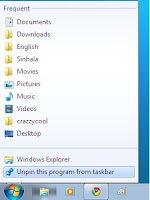 To delete these buttons from right click on the task bar button you want to remove and click Unpin this Program from taskbar.Also you can see the recently/frequently opened files by right click on the task bar button. Or by holding the mouse on the button and move the cursor upwards.All the open programs will go under each bottom and moving the mouse over each button will show the open windows. You can switch between the the windows or close them.
Windows 7 Task bar can be divide into two parts just like all the other Windows task bars.
Left Hand Side - Start Button and the Quick Launch button and open windows.Right Hand Side - Notification area with Show desktop.
You can see lot of improvement from left hand side comparing the Windows Vista. Beside the Start button by default you can see three icons for Internet Explorer, Library Folder and Windows Media Player that acts like quick launch buttons.
To add any other frequently used program by drag and dropping the the short cut to the task bar from desktop or any other folder.
To delete these buttons from right click on the task bar button you want to remove and click Unpin this Program from taskbar.Also you can see the recently/frequently opened files by right click on the task bar button. Or by holding the mouse on the button and move the cursor upwards.All the open programs will go under each bottom and moving the mouse over each button will show the open windows. You can switch between the the windows or close them.Clicking on the bottom will minimise and maximise the open windows or open new instance if there is no open program.
Pretty much in Windows7 you can handle all the windows functions from the taskbar buttons.
Right hand side of the taskbar is same as old except for having a dark grey area after the clock which will show desktop as you click on it.
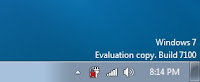 Task bar properties can be accessed by right click on the task bar and click on the properties. It give the options to
Lock the taskbar
Auto hide taskbar
Use smal icon
Taskbar location of your screen
Customise which notification icons appear in the notification area.
So far I am enjoying the Windows7 and will update with Windows7 hacks and tricks as we come cross. You can always add up more.
Task bar properties can be accessed by right click on the task bar and click on the properties. It give the options toLock the taskbar
Auto hide taskbar
Use smal icon
Taskbar location of your screen
Customise which notification icons appear in the notification area.
So far I am enjoying the Windows7 and will update with Windows7 hacks and tricks as we come cross. You can always add up more.
Saturday, August 8, 2009
Install Windows 7 with me
Just got a Windows7 release candidate DVD and thought installing it and give it a try. Last time I used the virtual machine and now I have a extra laptop to test it with. 1 GB RAM and 60GB hard drive. Enough for Windows 7.
1. Boot the computer with Windows 7 DVD.
2. Copying Windows 7 Files.
3. Click OK for the Key board type and general settings.
1. Boot the computer with Windows 7 DVD.
2. Copying Windows 7 Files.
3. Click OK for the Key board type and general settings.
4. Accept the Windows 7 terms and conditions. Click Next.
5. Give two options to upgrade or install a fresh copy. You can only upgrade it to Windows7 from Windows Vista and if Vista is already running. Select Install fresh copy.
5. Give two options to upgrade or install a fresh copy. You can only upgrade it to Windows7 from Windows Vista and if Vista is already running. Select Install fresh copy.
6. Select the partition.
Warning: The files and programs already install will be deleted. If you have important files you better have a backup.
7. It will automatically start copying files and extracting them. It is a bit slow process. Taking around 15 minutes.
8.Installing the features
9.Installing the updates
10. Completing the installation.
Restart...
11. Setup is preparing your computer for the first time and couple of other messages
12. Set up Windows requires to enter user name
13. Requires to enter password
14. Ask for Serial number but you can always click next as Windows7 will be activate for only 30 days
15. Specify the timezone and date and time click next will take you to the Windows 7 .
Installation Highlights:
* Much easier process. Smooth and when without any problems.
* Always keep a copy of the old OS files and program folder is a separate folder. User files can be accessed with special permission access grant from just
* You can not delete the folders from the previous OS by selecting the folder and press delete button . It need to be formatted and remove the files at the instalation time.
Labels:
Windows 7
Thursday, August 6, 2009
IE 6 must die
More that 14% uses IE6. Can you believe it? According to w3schools.com in the month July 2009 14.9% users use IE6. What is the big deal about it? This figure is more disturbing for the web developers rather than for you as a Internet surfer. Because they have to spend hours and hours to make their websites compatible with IE6 which is not a easy task as IE6 does not support most of the up to date web designing techniques. Are you still using IE6?
If Yes. Why? Most probably because it was the default browser been installed with Windows XP.
If Yes. Why? Most probably because it was the default browser been installed with Windows XP.
If Yes. Please make sure you upgrade to IE7 or IE 8 or any other latest web browsers. Here is the list of download links to the new web browsers...
- Google Chrome - Simple and Faster
- FireFox 3.5 - Fast and you will have lots of Ad-ons to play with
- Internet Explorer 8 - Latest and support all the latest
It is time to say good buy for Internet Explorer 6 for more secure faster and smoother web browsing experience. Also to support the people who work hard to make cool and crazy web applications for you. So they can bring the best with less trouble.....
If you need more reason why you should give up Internet Explorer 6 then IE6 must die for the web to move on will be good article to go through
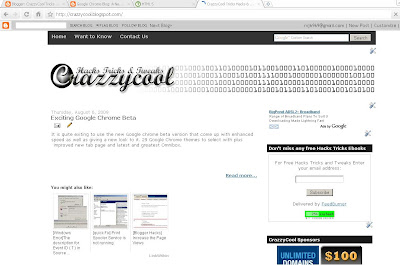
Exciting Google Chrome Beta
It is quite exiting to use the new Google chrome beta version that come up with enhanced speed as well as giving a new look to it. 29 Google Chrome themes to select with plus improved new tab page and latest and greatest Omnibox.
Normally new version try to improve the speed security and its features but always the changes done to the look and feel and interface is the one that bring the excitements.
Google chrome is speedy and simplest browser you can use around. Now you can add themes to it to make look funky or to match with your taste. Chrome is not a boring place any more.
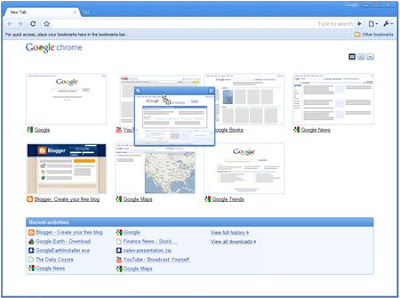
Normally new version try to improve the speed security and its features but always the changes done to the look and feel and interface is the one that bring the excitements.
Google chrome is speedy and simplest browser you can use around. Now you can add themes to it to make look funky or to match with your taste. Chrome is not a boring place any more.
We have address small issue with the Chrome new tab page as it can snap up your working screen that you do not want someone to see. Now it is been improved that you can move around thumbnails and delete it straight away or hide it.
This is what Google has to say about speed and its HTML5 capabilities.
"Experience HTML5 capabilities
Google Chrome Blog: A New Beta: Why slow down when you can speed up?
We're always trying to further push the things you can do in the browser. For example, we've started building HTML5 capabilities into this beta release, including video tag functionality and web workers.
Speed, Speed, and more Speed
Beyond the improvements in JavaScript execution in this latest beta, there are a host of other improvements that should help Google Chrome make the most of your network connection. For example, when you open a new web page while other web pages are still loading, Google Chrome is now smarter about prioritizing the requests for the new page -- for instance, fetching text, images, and video for your new page -- ahead of the requests from the older pages. Loading pages on this beta release should also be faster than ever with DNS caching, more efficient DOM bindings, and using V8 for proxy auto-config."
This is a good start for the Google Chrome Operating System and I am sure it will pretty much look and function like Chrome Browser.
Labels:
Google,
Google Chrome
Wednesday, August 5, 2009
GMail Hide labels, see subject lines on netbooks
Label is one of the coolest method that you can use to organize your emails in GMail. However, sometimes displaying the label in front of the subject line can hide email subject specially if your are using small screen with less resolutions. Here is the solution.
Now, there are some ways to work around this, like using Google Chrome's full screen mode, but I wanted a way to do more. So I created a new Gmail Labs feature called "Remove Labels from Subjects" that automatically hides the labels from messages in your inbox, leaving plenty of space for the messages' subjects.
To turn it on, just go to the Labs tab under Settings and look for the following icon:
Official Gmail Blog: New in Labs: Hide labels, see subject lines on netbooks
Now, there are some ways to work around this, like using Google Chrome's full screen mode, but I wanted a way to do more. So I created a new Gmail Labs feature called "Remove Labels from Subjects" that automatically hides the labels from messages in your inbox, leaving plenty of space for the messages' subjects.
To turn it on, just go to the Labs tab under Settings and look for the following icon:
Official Gmail Blog: New in Labs: Hide labels, see subject lines on netbooks
Labels:
Gmail
Tuesday, August 4, 2009
Dream office with Google Apps
This is something I have read in Google Blog. It obviously sounds like dream system. However, it is real and it is the basic functionality of Google Application. Google decide to go one step back in advertising. Online Ads to Bill boards.
"Every morning, millions of people wake up to a very refreshing experience at work. They don't see "mailbox is full" errors in their email. They don't worry about backing up their data. They can get to any file they need from any computer, anywhere with Internet access and a browser. They can all access and edit the same documents and spreadsheets at the same time as their colleagues. They use Gmail and Google Calendar at work as fluidly and easily as they use their personal Gmail accounts. They video, voice and text chat with their peers globally as naturally as they send email.
Official Google Blog: "Going Google" with Google Apps
The IT people at these companies and organizations don't waste time or money buying, installing or managing email servers. They focus on the smart, innovative stuff they want to work on, because they never have to bother with expensive and painful software upgrades, hardware compatibility issues or managing data centers. They have left many IT frustrations and costs behind and moved on to something better."
Official Google Blog: "Going Google" with Google Apps
Sunday, August 2, 2009
Add third party ads in the middle of blogger blog post
We've been asked how to add third party ads in the middle of the blog post. It is quite simple as we have been already discuss how to add AdSense ads in the middle of a blog post. Simple change can allow you to add third party ads or any other content in the middle of the blog post.
Before you start any thing remember to back up your template in case something goes wrong.
From the previous post we can get the code that we used to add AdSense ads in the middle of the post.
Now you want to apply third part ads or some other content. Lets make the changes.
Add your third party ad code just after the Third party Ad code goes here. Even a JavaScript should work without any problem. However, for some reason AdSense code directly from AdSense code generator does not work. All the other codes work fine with this way.
Before you start any thing remember to back up your template in case something goes wrong.
From the previous post we can get the code that we used to add AdSense ads in the middle of the post.
<div style='clear:both; float:right;  margin-left:5px;'>
<!-- Your AdSense code here -->
<b:if cond='data:post.includeAd'>
<data:adEnd/>
<data:adCode/>
<data:adStart/>
</b:if>
</div>
Now you want to apply third part ads or some other content. Lets make the changes.
<div style='clear:both; float:right;  margin-left:5px;'>
<!-- Third party Ad code goes here -->

</div>
Add your third party ad code just after the Third party Ad code goes here. Even a JavaScript should work without any problem. However, for some reason AdSense code directly from AdSense code generator does not work. All the other codes work fine with this way.
Subscribe to:
Posts (Atom)
