Showing posts with label FTP. Show all posts

Tuesday, December 15, 2009

How to add FTP Account in Windows Server 2008

It is not easy to add FTP account in Windows 2008 as it required little bit of configuration couple of installation and on top of that I came cross couple of error messages that took couple of hours to find a way to fix it. If you are configuring a FTP in Windows 2008 for the first time (just like me) this might be really helpful.


Before we start I should mention that I am not going to repeat the great step by step guides I already found really useful. But I will mention all the necessary steps and hacks to get it done.

Uninstall the FTP service that is shipped on the Windows Server 2008(Uninstall Old version of FTP)

Go to Server Manager > Roles
Check the following Roles are installed

FTP Publishing Service
FTP Server
FTP Management Console

If it is installed then Remove Role Services.
Restart the Server to apply the changes.

(Without uninstalling the above FTP services it will not allow you to install FTP Service 7.5)

Download the appropriate version of the
Download Microsoft FTP Service 7.5 for IIS 7.0 (x86)
Download Microsoft FTP Service 7.5 for IIS 7.0 (x64)

Install FTP Service 7.5

Installation Errors

E1. Distributed Transaction Coordinator Service may not be running. COM+ Catalog creation failed with error 0X80070422

There are couple of things you might have to try to get around with this error.

1. Check the Distributed Transaction Coordinator Service is running or not

Go to Server Manager > Configurations > Services >

If the service is not running

Double click on the Distributed Transaction Coordinator Service and change the start up type to Automatic (Delayed) and then click on Start.

2. Then Some suggest to start the System Event Notification Service and restart the server.

3. If every thing failed try install FTP7.5 without Manage code support in the FTP service 7.5 for IIS 7.0 Setup Wizard.


That should fix the problem. Then after restarting the server you should be able to see new FTP features in IIS7.0 Manager.

Monday, August 24, 2009

Backup Your Files Then You Must Try SyncBack

Last post I looked into the important things that we need to finalize before taking backups. After you decide What, Where and When to take backups, you will require proper file backup software that will meet all your requirements. When it comes to personal use I would like a free, simple tool that will silently back up my files without giving problems.

SyncBack is a simple but powerful software that can be used to backup and synchronize files and folder. It can access files and folders from computers from your local area network(LAN) or wide area network(WAN). Also, it can backup your files to a FTP account. You can create many profiles to meet different requirements. For example you can create one profile to backup My Documents and another one to backup Music and Movie folders. Also, SyncBack can be used to synchronize files between two or more computers. Then you can schedule each profile, so it will backup or sync your file frequently. 


Full featured SyncBack is available to download for free. It Support Windows 7, Vista, Windows XP, Windows 2008, Windows 2003, Windows 2000, Windows 98, 98SE, ME, and NT 4.However Windows 95 is not supported.

After you download and install SyncBack make sure you create couple of profiles to suite the files you have decided to take backups. For example you can create profiles base on daily, weekly and monthly or base on the file location or file types. 


If you create profiles daily, weekly and monthly schedule them accordingly. It is wise to choose a time that you do not use your computer. So, backup process will run smoothly and it will not slow down your computer or internet connection. Also, it you run regular backups make sure you give enough time in between each run to complete. 


Monday, December 22, 2008

[Basic] Use FTP directly from Visual Studio

Develop a web site in Visual studio and upload it to servers will take extra time as well as create more errors to fix. Specially if you are having a shared server where you have only FTP and web interface to control your server. Simple solution is to create your .net website directly in your server using Visual studio 2008 Express edition via FTP.

First create a FTP account with full permission for your domain. You might need to take help from your web hosting company if you are having some problems because it depends on the server management software they use and the configurations. (Your serve should support ASP.NET)

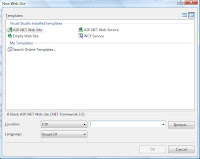
After configuring your server and ready. Open up Visual Studio 2008 Program in your local machine. Normally you will get a window called " New Web Site" or you can get this from "File" and then click "New Web Site"

By default it will create the web site on your local machine. 

You can change it from Location drop down menu to FTP and then you have to five the server name. (ftp://example.com or ftp://ftp.example.com)

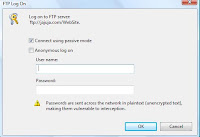
Then it will take you to the login screen 

Check "Login using passive mode" check box and it will ask you for the username and the password for the FTP server. 

Give the user name and password you gave at the time of configuration and Visual Studio will create the environment for you to program. 
Blog Widget by LinkWithin