Showing posts with label Remote Desktop. Show all posts

Saturday, April 14, 2012

All in one solution for Remote control, Meetings and Presentations

I want to...
  • Access my work computer from home in a case on emergency or vise versa. 
  • Transfer files between computer not in the local area network but connected to internet.
  • Demonstrate how new software / work flow to team members in different  locations without physically present there. (Online meetings)
  • Access my computer desktop from my smart phone or tablet while I am on the road. 
  • help my parent, grand parent to control computer when they find it hard to do daily computer tasks.
Are you looking for solutions for one or more of the above requirements? If the answer is yes, you will find the solution packed in the remote desktop software that I use regularly.

Remote desktop software, TeamViewer, is a all-in-one solution for remote access and support over the internet. Once you download and install the software and connect it to internet, you can access the computer from anywhere else using another computer, tablet or smart phones. It is quite simple.

Who will benefit from Teamviewer ?

  • Individual can use Teamviewer for free for personal use.
  • Small and Medium size businesses 
  • Also, large scale businesses
How your business can benefit from Teamviewer? 
  • Provide IT support over the internet. Specially for small and medium size companies that have one or more branches in different locations. IT team in your main office can troubleshoot problems without traveling to each branch.Save time and money wasted for traveling. 
  • Organize meetings, demonstrations, training programs over the internet.   
  • Allow your workers work from home or access work computer from home or while they are traveling. (Employees can easily copy or transfer files between computer and this may be a risk of coping company information) 
  • Don't loose access to your computer at work or home while you go for holidays. Your holiday can be spoiled, when things go wrong at your work. Make sure you enjoy your holiday and run your business smoothly.
Features that will make your life easy
  • Simple installation
  • Secure connection
  • Setup unattended access to access a computer without a operator.
  • Allow transfer files between remote computers. You can even drag and drop files between computers. 
  • It allows you to personalized your interface with your company logo and text.
  • Support  Windows, Mac, Linux environments
  • Provide Apple and Android app that will allow you to access your computer over that portable devices. 
  • Support multiple monitors. 
  • Allow you to take screenshots or  record the session 
  • Instant meetings and schedule meetings 
  • All participants can see each other just like conference video call. 
Teamviewer is a simple tool that will boost your production while you save money and time. I highly recommend this tool for small and medium size businesses that look into grow. Even if you are an individual who is depending on computers should install Teamviewer on every computer and set it to unattended access mode. If you are just like me I know your computer will be always on.

[Remote] Run Windows 8 on your shiny iPad

For the first time splashtop allows you to run Windows 8 comsumer preview on your iPad. idial solution for Metro app developers to test their Metro UI without buying new hardware. If you watch the demonstration, you will notice that Windows 8 metro UI runs smoothly on a tablet.


Win8 Metro Testbed application can be downloaded and install on your iPad for only $24.99 (Special price) and Splashtop streamer on your Windows 8 PC for free. Connect both the devices to the network and you can experience Windows 8 Metro UI on your iPad. 


 For more information about Win8 Metro Testbed visit Spashtop.

Sunday, August 7, 2011

How to Control your Computer from Bed using your mobile.

Week end is the ideal time to spend some extra hours on the bed for most of us. If you keep your computer in front of the bed and like to watch a movie or Youtube videos without you have to jumping out of the bed, this post will help you.

You can simply turn your Smart phone (Android phone, Apple iPhone or iPad) in to a wireless mouse and keyboard using this simple Application. You will require a Smartphone (which most of us have) and WI-FI internet connection where you can connect your mobile and the computer.


1. First Download the Desktop Remote Free on your Android device.
2. Then you need to install the desktop software which you can find from here.
3. Start the Desktop Remote Free Application and it will auto detect your computer as the server.
4. Now you can control the desktop from your mouse.

Make sure you connect both mobile and the desktop to the same WI-FI connection. Also, free version would not show the desktop in your mobile.

For your iPhone and iPad you can use JumiMouse Desktop/Mouse/Remote for PC or JumiOne Desktop/Keyboard/Mouse, Remote Webcam and media remote for PC.

Enjoy the simple week end hack with Android and iPhone app hack.

Sunday, September 13, 2009

Remote Desktop Connection Windows 7

Remote Desktop connection is one of the common things you would use in a Local Area Network to access other computers or even through internet if you know the IP and have access to the computer. Lets have a quick look at how you going to set up your Windows 7 computer to allow remote desktop connection.


First Go to Windows 7 Control pannel.
Click on System and Security
Click on Remote Settings

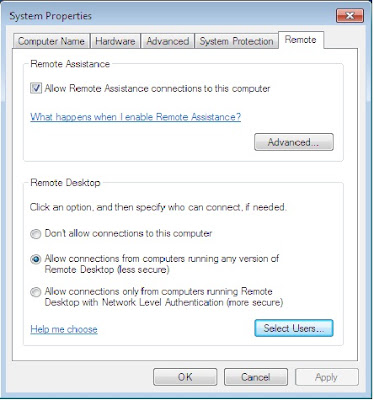
This will pop up a new windows that will allow you to setup the remote desktop settings. Options are similer to other Windows Versions except for couple new options.

Under Remote Desktop select the option
"Allow connection from computers running any versions of remote desktop (less secure)"

If you are trying to remotely connect to your Windows 7 computer using Windows XP or Vista computer this would be the best option even though it says less secure.

Monday, April 21, 2008

Error Message: Unable to Log You on Because of an Account Restriction

You will get error message Error Message "Unable to Log You on Because of an Account Restriction" when you try to login to a computer using remote desktop.

Reason for this error message is the user account does not have a password. Simply login to the user account from the local machine and go to control panel > user account to setup a password.

Cool the problem will be solved.

how to login to computer using remote desktop. (windows XP)

Start > All Programs> Accessories > Communication > Remote desktop Connection

In windows Vista

Start > type "Remote desktop" in the search area. (I think thats coool and easy)
Blog Widget by LinkWithin