After upgrading your Joomla server or changing the servers you may experionthe following error message
PHP Warning: Parameter 3 to mb_videobot() expected to be a reference, value given in /home/user1/public_html/libraries/joomla/event/dispatcher.php on line 136
It might be causing due to the Joomla social plugin Azurl Video Manager. Compatibility issue of the plugin with the server update or the new server settings will cause the following.
Warning: Parameter 3 to mb_videobot() expected to be a reference, value given in /home/myroooxa/public_html/libraries/joomla/event/dispatcher.php on line 136
How to remove the above warning from your Joomla website.
First if your not using the plugin simply deactivate it from Joomla plugins.
If you are using this plugin you can do the following change to the plugins/content/azvideobot.php file.
function mb_videobot($published, & $row, & $params, $page=0 ){
to
function mb_videobot($published, & $row, $params, $page=0 ){
(remove ampersand before $params)
Also, I would recommend you to update the Azrul plug in.

Showing posts with label error. Show all posts
Showing posts with label error. Show all posts
Tuesday, August 21, 2012
Wednesday, April 18, 2012
BuddyPress Fatal error: Class 'BP_Group_Extension' not found Fix

You will get a error message similar to the following
PHP Fatal error: Class 'BP_Group_Extension' not found in website_path/wp-content/plugins/external-group-blogs/bp-groups-externalblogs.php on line 4
First thing first: You need to get access to the admin area to fix the problem. Easiest way to get access is ...
1. Log in using FTP account to the website files.
2. Navigate to the external-group-blogs folder.
3. Delete all the .php files ( make sure you you download them to your computer as a backup )
4. Done! Now you should have access to your website.
5. Go back change the settings as you wish.
Wednesday, January 13, 2010
Patience is the key become a troubleshooting guru
I have been discussing about general techniques to be use in troubleshooting in a previous post. I thought I should discuss little bit more about one thing I mentioned. That is patience: Relax state of mind that will not over react to the outside world.
Good-natured tolerance of delay or incompetence
I have come cross hundreds may be thousands of computer and internet related problems that been forwarded to me because someone one could not fix it. Ninety percent of the problems fixed less than five minutes. Do not take me wrong that I have special knowledge or power to solve those computer problems. However, carefully listen to the problem and tolerate the hard time some hardware and software gives you will give you the magical power to solve it.
As soon as something goes wrong or dose not works people, start screaming about it.
My computer is not working.
I cannot type anything
Dam this computer stuck again.
How can I print I dose not print?
Computer runs too slow I cannot work like this.
Why my computer is not responding?
This is just some of the screaming you usually hear when things go wrong. Next, you see a frustrated person trying to get some help. Problem will not be properly explained to the person who is willing to help because he/she is already gone mad about the problem. Therefore, it will be hard to fix the problem and things can go worst. Finally scream at the person who tries to help and leave the problem as it is.
Ideally, you should be more responsible and look into the problem in a clear mindset. You should look at that as a simple problem. For example if the keyboard is not responding, simply you can follow some general trouble shooting steps.
Try to press different keys – May be couple of keys are not working
Check weather the keyboard is connected to the computer and how it is connected.
Try to disconnect it and reconnect it see it is going to work.
If it did not fix the problem then try to restart the computer and see it might fix the problem.
Only trick is to think of all the possible things that can go wrong. Remember to start from the simplest thing. You do not have to be technical. Try simplest things like check all the wires are connected, power is on, and power is going to the device by checking the power light.
Then as the last step look for help. That can be Google, friend or technician. Again, remember not to be stressed about the unsolved issue. Explain what you noticed and what you tried to solve it clearly. Then it is much easier for other person to have a good picture of what is really happening with your device. If you are getting the help over the phone, remember it is not an easy to fix things remotely without looking at the real thing. Try to explain much as possible.
Do not get stressed or loose your temper over the technical issues you come cross. You are not working with super intelligence perfect devices or machine. You control it. Treat it gently and in any case of technical issue try to understand what is wrong. Then try to find the answers. Getting frustrated and angry will not solve it at all. That is the key to solve it.
Good-natured tolerance of delay or incompetence
I have come cross hundreds may be thousands of computer and internet related problems that been forwarded to me because someone one could not fix it. Ninety percent of the problems fixed less than five minutes. Do not take me wrong that I have special knowledge or power to solve those computer problems. However, carefully listen to the problem and tolerate the hard time some hardware and software gives you will give you the magical power to solve it.
As soon as something goes wrong or dose not works people, start screaming about it.
My computer is not working.
I cannot type anything
Dam this computer stuck again.
How can I print I dose not print?
Computer runs too slow I cannot work like this.
Why my computer is not responding?
This is just some of the screaming you usually hear when things go wrong. Next, you see a frustrated person trying to get some help. Problem will not be properly explained to the person who is willing to help because he/she is already gone mad about the problem. Therefore, it will be hard to fix the problem and things can go worst. Finally scream at the person who tries to help and leave the problem as it is.
Ideally, you should be more responsible and look into the problem in a clear mindset. You should look at that as a simple problem. For example if the keyboard is not responding, simply you can follow some general trouble shooting steps.
Try to press different keys – May be couple of keys are not working
Check weather the keyboard is connected to the computer and how it is connected.
Try to disconnect it and reconnect it see it is going to work.
If it did not fix the problem then try to restart the computer and see it might fix the problem.
Only trick is to think of all the possible things that can go wrong. Remember to start from the simplest thing. You do not have to be technical. Try simplest things like check all the wires are connected, power is on, and power is going to the device by checking the power light.
Then as the last step look for help. That can be Google, friend or technician. Again, remember not to be stressed about the unsolved issue. Explain what you noticed and what you tried to solve it clearly. Then it is much easier for other person to have a good picture of what is really happening with your device. If you are getting the help over the phone, remember it is not an easy to fix things remotely without looking at the real thing. Try to explain much as possible.
Do not get stressed or loose your temper over the technical issues you come cross. You are not working with super intelligence perfect devices or machine. You control it. Treat it gently and in any case of technical issue try to understand what is wrong. Then try to find the answers. Getting frustrated and angry will not solve it at all. That is the key to solve it.
Labels:
error,
Fix Problems

Monday, January 4, 2010
Troubleshoot Computer Problems in 2010
We are in 2010 dose not mean that computers will stop giving problems. Even in 2010 technology is not that advance to fix their own problems. So someone need to troubleshoot problems as they arrive. Lets have a couple of simple hacks and tricks that can be used to fix any computer problem.
Most of us think that computers are perfect or suppose to be perfect and get frustrated when something goes wrong. That is wrong and computers can only do what you program it to do and if somethings small goes wrong it start giving problems. So you need to fix it.
People think that if it is related to computers then it is too complicated and you need to learn about it to fix it. But what you learn in school or university will not help much when it come to troubleshoot.
One more thing that if you are scared of things will go worse with your action then you might have difficulties trying out new things and troubleshooting.
Whats is the problem?
Before you start doing anything you need to identify that there is a problem. It is easy. If things dose not work as it was before or giving out error messages or warnings or if it dose not do what it suppose to do then there is a problem. Identifying the problem is the most important part of troubleshooting. That is the one most of us dose not pay much attention.
What cause the problem?
After identifying the problem then try to look for the reason for it. If there is any error message it will give most of the information you need. Most of the modern operating systems and programs have detailed error or warnings that tell what cause the problem.
Even if you get a error code you can always refer to its documentation or use Google to get the explanation and more details about the problem.
In some cases you will not find any error or warning message. For example if keyboard is not responding or CD/DVD ROM is not been detected or computer is too slow kind of scenarios will not leave any error messages. So try to collect as much information as possible.
What are the related software hardware components?
Which actions cause the error?
Above are two good questions that you should answer to get a idea about the problem. On top of that before you move to the next step try to get more information about the environment as well.
What Operating System (OS) are you using?
What is the OS Service Pack or Software Version?
What are the other programs that run in the background?
What are the last couples of changes you have done? (Upgrade/Installed new Software)
More related questions you try to answer related to your problem with make it easy to solve it as you get better unresting.
What is the solution to the problem?
As you gather more information about the computer or internet related problem will make it easy to look for a solution.
1. If you have solved a similar or exactly the same problem then the solutions for your problem will be to apply similar. That is base on your experience and with time you will gather more and more experience you will be able to troubleshoot tech problems pretty easily.
2. Even without any prior knowledge you can find a way to solve your tech problem.
You are not the first person to go through PROBLEM A.
Most of the cases (99% of time) you will notice that you are not the only one to face that problem or the first one to be. So you can always get help from others who have solved the problem. If you gone through blogs or forums related to your problem then you will notice how many people were gone through the same problem.
I use Google to find these forums and blogs which gives out step by step guides to solve tech problems. Great but how do you know whether it is going to work out. Small trick you need to do is to scan through the comments below the post or the conversations going on in the forums to see what others been saying. Because all the time you will not find the working solutions.
Another important fact when it comes to Googling is to use the appropriate search term.
1. Use the exact error message or code.
In this way you will be able to find the most appropriate solutions from Google. I will always try to copy and paste the exact error message in Google or in the documentations.
2. Use the exact error message or code with the software/OS/website/ name and version.
If the error message is generic you have to use the name of the software, application, OS or website with its version details with the error message to see the related discussion and solutions with Google.
3. Description of your problem with software/OS/website/ name and version
If there is no error message or code then you have to use a little description of the problem and all the other details related to the issue. That can be the operating system, software name or version details.
Always it is better to mix up the keywords or add and remove keywords to optimize the search result for your problem.
After going through the solutions and related comments and replies if you feel like that you cannot fix it or there is a high probability to make thing worst then always better to get someone else help. Even though you are not going to fix it by yourself knowing the problem and the solution is a great help when you try to look for help.
How to fix it?
Here comes the fun part. Fixing the problem. Until now what we did is to understand the problem and solutions to it. So now we need to apply it and get our problem solved.
1. First thing first. It is always better to backup your content and system as some times things can go wrong. If something can go wrong it will (Murphy's law). Unless your operating system is crashed or files are corrupted you have a chance to back up all your content before you try troubleshooting. In most of the step by step guides they will instruct you to backup if what you are trying to do can cause any damage to the data.
When it comes to system back up System Restore comes in handy as you can roll back to previous state of you computer if your troubleshooting created further problems and if you feel like it is getting worst and worst.
2. Then take couple of deep breaths and follow the solution that you found out. It is really important to be patience even things are not going great. That helps to over come the problems.
3. After going through the instructions sometimes you might end up without solving the problem. In worst case it might brings up a new problem. Do not blame anyone as that is quite common with computers. In such situation you need to go back to first step and follow the steps to get it fix.
This is quite general way to solve problems but I have tried this to solve many problems as it comes. Always a positive mind set will help you to get through any difficult situation with your computer or related issues.
Most of us think that computers are perfect or suppose to be perfect and get frustrated when something goes wrong. That is wrong and computers can only do what you program it to do and if somethings small goes wrong it start giving problems. So you need to fix it.
People think that if it is related to computers then it is too complicated and you need to learn about it to fix it. But what you learn in school or university will not help much when it come to troubleshoot.
One more thing that if you are scared of things will go worse with your action then you might have difficulties trying out new things and troubleshooting.
Whats is the problem?
Before you start doing anything you need to identify that there is a problem. It is easy. If things dose not work as it was before or giving out error messages or warnings or if it dose not do what it suppose to do then there is a problem. Identifying the problem is the most important part of troubleshooting. That is the one most of us dose not pay much attention.
What cause the problem?
After identifying the problem then try to look for the reason for it. If there is any error message it will give most of the information you need. Most of the modern operating systems and programs have detailed error or warnings that tell what cause the problem.
Even if you get a error code you can always refer to its documentation or use Google to get the explanation and more details about the problem.
In some cases you will not find any error or warning message. For example if keyboard is not responding or CD/DVD ROM is not been detected or computer is too slow kind of scenarios will not leave any error messages. So try to collect as much information as possible.
What are the related software hardware components?
Which actions cause the error?
Above are two good questions that you should answer to get a idea about the problem. On top of that before you move to the next step try to get more information about the environment as well.
What Operating System (OS) are you using?
What is the OS Service Pack or Software Version?
What are the other programs that run in the background?
What are the last couples of changes you have done? (Upgrade/Installed new Software)
More related questions you try to answer related to your problem with make it easy to solve it as you get better unresting.
What is the solution to the problem?
As you gather more information about the computer or internet related problem will make it easy to look for a solution.
1. If you have solved a similar or exactly the same problem then the solutions for your problem will be to apply similar. That is base on your experience and with time you will gather more and more experience you will be able to troubleshoot tech problems pretty easily.
2. Even without any prior knowledge you can find a way to solve your tech problem.
You are not the first person to go through PROBLEM A.
Most of the cases (99% of time) you will notice that you are not the only one to face that problem or the first one to be. So you can always get help from others who have solved the problem. If you gone through blogs or forums related to your problem then you will notice how many people were gone through the same problem.
I use Google to find these forums and blogs which gives out step by step guides to solve tech problems. Great but how do you know whether it is going to work out. Small trick you need to do is to scan through the comments below the post or the conversations going on in the forums to see what others been saying. Because all the time you will not find the working solutions.
Another important fact when it comes to Googling is to use the appropriate search term.
1. Use the exact error message or code.
In this way you will be able to find the most appropriate solutions from Google. I will always try to copy and paste the exact error message in Google or in the documentations.
2. Use the exact error message or code with the software/OS/website/ name and version.
If the error message is generic you have to use the name of the software, application, OS or website with its version details with the error message to see the related discussion and solutions with Google.
3. Description of your problem with software/OS/website/ name and version
If there is no error message or code then you have to use a little description of the problem and all the other details related to the issue. That can be the operating system, software name or version details.
Always it is better to mix up the keywords or add and remove keywords to optimize the search result for your problem.
After going through the solutions and related comments and replies if you feel like that you cannot fix it or there is a high probability to make thing worst then always better to get someone else help. Even though you are not going to fix it by yourself knowing the problem and the solution is a great help when you try to look for help.
How to fix it?
Here comes the fun part. Fixing the problem. Until now what we did is to understand the problem and solutions to it. So now we need to apply it and get our problem solved.
1. First thing first. It is always better to backup your content and system as some times things can go wrong. If something can go wrong it will (Murphy's law). Unless your operating system is crashed or files are corrupted you have a chance to back up all your content before you try troubleshooting. In most of the step by step guides they will instruct you to backup if what you are trying to do can cause any damage to the data.
When it comes to system back up System Restore comes in handy as you can roll back to previous state of you computer if your troubleshooting created further problems and if you feel like it is getting worst and worst.
2. Then take couple of deep breaths and follow the solution that you found out. It is really important to be patience even things are not going great. That helps to over come the problems.
3. After going through the instructions sometimes you might end up without solving the problem. In worst case it might brings up a new problem. Do not blame anyone as that is quite common with computers. In such situation you need to go back to first step and follow the steps to get it fix.
This is quite general way to solve problems but I have tried this to solve many problems as it comes. Always a positive mind set will help you to get through any difficult situation with your computer or related issues.
Monday, October 26, 2009
KB970892 update failed
SQL Server 2005 Service Pack 3 update KB970892 has been failed in Windows 2003 for some reason and it is keep on stopping the SQL services every time it tries to install the update. Lets see how it can be solved in details.
Windows update related to SQL server Service pack 3 (KB970892) is been failing to install in Windows XP, Windows 2003 Environments. If you have a close look at the Event Viewer you can notice couple of Error messages related to this.
Product: Microsoft SQL Server 2005 Express Edition - Update 'GDR 4053 for SQL Server Database Services 2005 ENU (KB970892)' could not be installed. Error code 1603. Additional information is available in the log file C:\Program Files\Microsoft SQL Server\90\Setup Bootstrap\LOG\Hotfix\SQL9_Hotfix_KB970892_sqlrun_sql.msp.log.
Annoying part is if the Windows Update is set to Automatic them every time it tries this update will stop the SQL services which cause SQL Database driven websites to go offline.
Simple Registry Hack will fix this issue. I tried it on Windows 2003 Server and it should work on Windows XP in the same way around. Source NetScanTool Pro Inside Out Comment.
1. Go to Run, type regedit, and click ok, or press Enter.
2. Back up your registry, if you don't know how to do this, google it...
3. In Regedit, go to [HKEY_LOCAL_MACHINE\SOFTWARE\Microsoft\Microsoft SQL
Server\MSSQL.1\Setup]
4. find the Resume REG_DWORD, and change its decimal value from 1, to 0.
5. Check MSSQL.2 and MSSQL.3 for the Resume key and change the value to 0 from 1.
HKEY_LOCAL_MACHINE\SOFTWARE\Microsoft\Microsoft SQL Server\MSSQL.2\Setup
HKEY_LOCAL_MACHINE\SOFTWARE\Microsoft\Microsoft SQL Server\MSSQL.3\Setup
5. install the update, and restart the machine.
This worked like a magic and solve the KB970892 installation problem.
![Reblog this post [with Zemanta]](https://lh3.googleusercontent.com/blogger_img_proxy/AEn0k_tUvN6adml9kf52qqvHXl22oFCIy2vIRoOgN7-p9ELOfdxCgeo3jihp6Gp95AFtcHUzXdZpSNQOXoVIa7Gm1FzxLP3Lu0gmgF1OGkbvkCSITkoCLiS4b50O9ame8DV752SXg0Cx689qtzNN5VjakVM=s0-d)
Windows update related to SQL server Service pack 3 (KB970892) is been failing to install in Windows XP, Windows 2003 Environments. If you have a close look at the Event Viewer you can notice couple of Error messages related to this.
Product: Microsoft SQL Server 2005 Express Edition - Update 'GDR 4053 for SQL Server Database Services 2005 ENU (KB970892)' could not be installed. Error code 1603. Additional information is available in the log file C:\Program Files\Microsoft SQL Server\90\Setup Bootstrap\LOG\Hotfix\SQL9_Hotfix_KB970892_sqlrun_sql.msp.log.
Annoying part is if the Windows Update is set to Automatic them every time it tries this update will stop the SQL services which cause SQL Database driven websites to go offline.
Simple Registry Hack will fix this issue. I tried it on Windows 2003 Server and it should work on Windows XP in the same way around. Source NetScanTool Pro Inside Out Comment.
1. Go to Run, type regedit, and click ok, or press Enter.
2. Back up your registry, if you don't know how to do this, google it...
3. In Regedit, go to [HKEY_LOCAL_MACHINE\SOFTWARE\Microsoft\Microsoft SQL
Server\MSSQL.1\Setup]
4. find the Resume REG_DWORD, and change its decimal value from 1, to 0.
5. Check MSSQL.2 and MSSQL.3 for the Resume key and change the value to 0 from 1.
HKEY_LOCAL_MACHINE\SOFTWARE\Microsoft\Microsoft SQL Server\MSSQL.2\Setup
HKEY_LOCAL_MACHINE\SOFTWARE\Microsoft\Microsoft SQL Server\MSSQL.3\Setup
5. install the update, and restart the machine.
This worked like a magic and solve the KB970892 installation problem.
Labels:
error,
Microsoft,
SQL,
windows 2003,
Windows 2003 Server,
Windows Registry,
Windows XP
Thursday, October 22, 2009
Why Google Feedburner Sends 22 September Post
I have notice that today (22nd Octomber) that one of our old post (22nd September) is going through the Google Feeds. Sorry about the inconvenience and we are investigating how it really happened.
If you got Google Stuff up one of the old posts in crazzycool Please ignore it and it is due to some fault or confusion in Google fed burner. Crazzycool is sorry about the inconvenience.
If you got Google Stuff up one of the old posts in crazzycool Please ignore it and it is due to some fault or confusion in Google fed burner. Crazzycool is sorry about the inconvenience.
Labels:
CrazzyCool,
error,
Google
Thursday, August 13, 2009
HP DV series laptop does not boot
Is your HP DV series laptop stop booting but all the lights are on as normal? I have been going through this problem couple of months ago. Pavilion DV2000 laptop screen is black (nothing on the display) when power button is on. However, power lights and other lights are on as usual as well as hard disk light keeps on blinking showing that it is busy. After while it gives three beeps.
One long beep and two short beeps. That's a indication of that video card has been failed. If you think of solving the basic hardware problems with laptops...
1) remove the battery and try to boot is using AC power -failed
It is a common problem in HP DV series laptop unfortunately. In America it seems like HP is giving extended warranty for these machine but nothing like that in Australia. Everyone who is having this problem tells the same symptoms and no luck with it.
One long beep and two short beeps. That's a indication of that video card has been failed. If you think of solving the basic hardware problems with laptops...
1) remove the battery and try to boot is using AC power -failed
2) remove RAM and boot - yep it stop booting at all (normal)
3) replace RAM and boot - failed
4) connect to a external monitor and boot - failed
5) remove hard rive and boot - failed
pretty much everything I tried failed. Even contacting HP failed as it was already out of warranty. No complain for HP for that. After all the testing I have done I sure they will not give me any warranty. Only option was to put it aside and get a new computer. There is no point of replacing the hardware (video card is inbuilt one) it's going to cost me more.
After couple of months later I wanted a extra computer to test Windows7. Took the HP laptop back and booted it up. Same problem. Three beeps, nothing on the screen and lights are on. Tried couple of times.
Removed the battery and power and hit it bit hard on my leg (should not try it as it may hurt you) as I was bit upset about it.
Put the power back and BINGO. It start working. It booted up after three four months. Installed Windows7. When rebooting had the same issue as it did not reboot. I thought it is having issues in rebooting. But when you switch it off and boot it again it start normally.
So video card should be fine.
Then what is wrong with it? Even it start up it did not fix the problem. It keeps on coming and fix by it self and working again.
This is what HP is saying about this not booting HP laptop problem.
I assume it is something to do with heating problem as the BIOS fix make the fan run constantly to solve the issue it seems. But if the machine is already stop booting there is no luck with upgrading the BIOS. But you might be bit luck try bit of shaking and banging and see if there is any luck with it.
It is a common problem in HP DV series laptop unfortunately. In America it seems like HP is giving extended warranty for these machine but nothing like that in Australia. Everyone who is having this problem tells the same symptoms and no luck with it.
Good luck with it. If you are under warranty or in USA do not try any of these methods. simply contact HP and let them solve the problem for you. If you are having HP DV series machine make sure do the BIOS upgrade. That's all I can say about this issue.
Thursday, July 16, 2009
Restore failed - Microsoft SQL Server Management Studio
Are you getting an error while trying to restore Microsoft SQL Database via Microsoft SQL Server Management Studio?Additional information (Error Message)
System.Data.SqlClient.sqlError: Exclusive access could not be obtained because the database is in use (Microsoft.SqlServer.Smo)


System.Data.SqlClient.sqlError: Exclusive access could not be obtained because the database is in use (Microsoft.SqlServer.Smo)
Lets see what you need to do to solve this problem...
Reason for this error is most of the time database will be used by a program. You just have to kill that so database will be free to restore.
Reason for this error is most of the time database will be used by a program. You just have to kill that so database will be free to restore.
Right click on the Database after login in to the Microsoft SQL Server Management Studio with right previlages. Select Rasks and go to Detach. In general page you will see the database you have right clicked with a Message saying how many active connections are. Click on the message will pop up a new window with the Process info.
Right click on the process and kill Process will free the database to restore.
Thursday, July 9, 2009
Cannot edit Outlook 2003 signature file
Are you using Outlook 2003 with Windows Vista and trying to edit your signature using Advanced Edit? Then you might be come cross this error message.
cannot open the file Extension H(.) file
That does not explain much but the solutions for this error is quite simple.
In Windows Vista, go to Control Panel (Classic Mode) and go to default programs. Select Associate file type or protocol with a program and scroll down to .htm and click Change Program select Word 2003.
cannot open the file Extension H(.) file
That does not explain much but the solutions for this error is quite simple.
In Windows Vista, go to Control Panel (Classic Mode) and go to default programs. Select Associate file type or protocol with a program and scroll down to .htm and click Change Program select Word 2003.
This will solve the problem.
There is a longer version for this as well (Not Recomended). You can manually change the signature file from the signature folder. Default location (Users > > App Data > Microsoft > Signature)
There is a longer version for this as well (Not Recomended). You can manually change the signature file from the signature folder. Default location (Users >
select the file and open with Word and do the editing you want and Save it. If Outlook is open the files would be read only so better to close outlook before editing the file.
Friday, June 26, 2009
Internet Explorer Problem (All Versions)
We have been getting some complains as Crazzycool blog does not load properly. It start loading and all of a sudden it start crashing or come up with the message page not found. Some cases it start opening up the web page over and over again without giving any chance to close them. This can be experiences only in Internet Explorer and we are keep on searching for what is the cause for that.
First of all it is not causing by any virus malware or any doggy program. It seems to be a compatibility issue or Internet Explorer issue.
If it keeps on opening up the same page continuously open up the Task Manager (Ctr + Alt + Del) and kill the iexplorer.exe and you can control it.
We have experienced the same problem with many other website such as Facebook, Google and the problem start if we try to close Internet Explorer before the page loads 100%.
Solutions
Temporary solutions is to use FireFox or Google Chrome.
We will keep on updating on this problem. Please share your experience and if you have figure out what is causing this.
Labels:
error,
IE8,
Internet Explorer
Monday, June 8, 2009
How to diagnose Harddrive problems
Do you have a harddrive that makes a clicking noise? Are you worried about the health of your harddisk? Is your computer overheating and possibily damaging the harddrive?
Well, there is one easy way to find out with the HDDhealth Utility.
Here's what the creator's have to say about the software. I personally use it and find is extremely useful.
You can download it from here.
HDD Health is a full-featured failure-prediction agent for machines using Windows 95, 98, NT, Me, 2000 and XP. Sitting in the system tray, it monitors hard disks and alerts you to impending failure. The program uses Self Monitoring and Reporting Technology (S.M.A.R.T.) built into all new hard disks, and can predict failures on your hard drives. A host of alerting features include email, local pop-up messages, net messages, and event logging, while using no system resources.
Labels:
Computer,
Computer Forensics,
error,
Fix Problems,
harddrive,
Hardware,
tools,
utilities
Monday, April 6, 2009
[Windows Error]The description for Event ID ( 7 ) in Source ( Disk ) cannot be found
Computer slows down and couple of programs such as Internet Explorer and Outlook start crashing most of the time. In the Event log it keeps on giving the following error.
Error
The description for Event ID ( 7 ) in Source ( Disk ) cannot be found. The local computer may not have the necessary registry information or message DLL files to display messages from a remote computer. You may be able to use the /AUXSOURCE= flag to retrieve this description; see Help and Support for details. The following information is part of the event: \Device\Harddisk0\D.
It seems like the Hard Drive is having some issues such as bad sectors or it may die sooner.
First Step - Back up
Back up all the important information you have to a external device such as DVD, External Hard drive or a online storage.
Second Step - Hard drive error Checking
 Right click on the Hard Drive that you are having issues with. Most of the case it will be the Hard Drive that Windows is installed. Select Properties and then go to Tools. Under Error Checking Press "Check Now" Button.
It will open a small windows.
Select Automatically Fix File System Errors and Scan for and attempt to recovery of bad sectors.
and then click start.
Most probably you will get the message saying
The disk check could not be performed because the disk check utility needs exclusive access to some Windows file on the disk.
Click Yes so it will start when you restart your computer next time.
Restart the computer and it will start checking the file system. It may take some times.
I will update the result as it finish error checking.
(Update)
Acctually after the second step it fix the
"The description for Event ID ( 7 ) in Source ( Disk ) cannot be found" error.
Error
The description for Event ID ( 7 ) in Source ( Disk ) cannot be found. The local computer may not have the necessary registry information or message DLL files to display messages from a remote computer. You may be able to use the /AUXSOURCE= flag to retrieve this description; see Help and Support for details. The following information is part of the event: \Device\Harddisk0\D.
It seems like the Hard Drive is having some issues such as bad sectors or it may die sooner.
Back up all the important information you have to a external device such as DVD, External Hard drive or a online storage.
Second Step - Hard drive error Checking
Right click on the Hard Drive that you are having issues with. Most of the case it will be the Hard Drive that Windows is installed. Select Properties and then go to Tools. Under Error Checking Press "Check Now" Button.It will open a small windows.
Select Automatically Fix File System Errors and Scan for and attempt to recovery of bad sectors.
and then click start.
Most probably you will get the message saying
The disk check could not be performed because the disk check utility needs exclusive access to some Windows file on the disk.
Click Yes so it will start when you restart your computer next time.
Restart the computer and it will start checking the file system. It may take some times.
I will update the result as it finish error checking.
(Update)
Acctually after the second step it fix the
"The description for Event ID ( 7 ) in Source ( Disk ) cannot be found" error.
Labels:
error,
Hardware,
Windows Vista,
Windows XP
Monday, March 23, 2009
[Error] Excel Crashes when selecting fonts
I have noticed a wired error when I try to change the fonts in Microsoft Excel. Excel get crashed and close it self when ever I change fonts or make fonts bold. Then I try same with Microsoft Word and result was same.
Problem caused by the default printer drivers. When I remove the default printer to another Excel, Word start working normally.
Solution: To reinstall the printer drivers.
You can easily think that the problem comes from word or excel and I completely uninsulated Microsoft office and install it again and again but nothing was changed.
Problem caused by the default printer drivers. When I remove the default printer to another Excel, Word start working normally.
Solution: To reinstall the printer drivers.
You can easily think that the problem comes from word or excel and I completely uninsulated Microsoft office and install it again and again but nothing was changed.
Labels:
error,
Excel,
Fix Problems,
Windows XP
Sunday, March 22, 2009
[Basic] The Ping Command
Ping command is one of the effective ways to troble shoot network related problems. Ping basically checks whether the connection between network devices are properly comunicating. You can check the connections between computers or router to computer. Only thing you need
to identfy is the IP addresses of each devices in order to use PING command.
First you should know how to check the IP address of a computer and your router. First your computer must be connected to another device (router, modem)
In windows XP
Start > Run > type "cmd" and enter. It will open the command line.
In Windows Vista
Start > in Search type "cmd" and select the command link and click to open the command line.
Then in command line type "ipconfig"
and enter. It will give you a list of IP address.

IP Address 192.168.1.2 is the address of your computer.
Default Gateway 192.168.1.1 is the IP address of your router.
Next step is to PING 192.168.1.1 to check the connection between your computer and router.
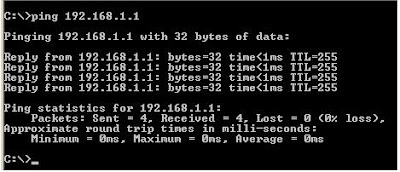
Type ping 192.168.1.1 in the command line and if you get the result Packets sent 4, Received 4 and Lost 0, That means the connection between the router and the computer is working fine.
Then you can ping a website to check the Internet connection.
Type "ping www.google.com" in the command line. And if you get the same result as before that means the Internet connection is working as well.
If you have any kind of problem with the connection ping result will give some Lost packets and you need to trouble shoot the connection. Ping is a really simple but handy command to identify the network related problems.
Labels:
error,
Network Monitoring
Friday, March 20, 2009
[quick Fix] Print Spooler Service is not running
You will get the error "Printer Spooler Service is not running" when you try to add a new printer or open the printer when some thing wrong with your Print Spooler. Simple fix to this is to restart the Print Spooler service and make sure it is Start up type is Automatic.
Right click on "My computer"
Go to "Manage"
Expand "Services and applications"
Go to "Services"
Find the "Print Spooler"
Then Stop the Service and Start it again and change the service start up type to Automatic and the problem will be solved.
Labels:
error,
Fix Problems
Monday, March 16, 2009
[eBay] Ebay Error Message when Posting
For all the ebay listers out there...
If you encouter this error message while listing your item to sell on Ebay
"Your weekly selling activity limits have been exceeded, or the user has not registered as a seller. Please check eBay for selling requirements"
The fix requires you to login to My Ebay and add funding card (Credit card or Debit card) to the linked Paypal account.
Once you have entered card details into Paypal you will be able to list your item on Ebay successfully.
Labels:
Ebay,
error,
Online Auctions
Saturday, March 14, 2009
[Hardware] EEE PC does not start
It was not a good time for me. I am getting all sort of hardware issues with the computers. All of a sudden I have notice my EEE PC does not start when the power button is pressed. Power light, Charging light and the wireless light is on but no hard drive light and screen is blank. Nothing much you can do after that.
There are couple of thing you can try.
1. Take the battery out of the EEE PC and press the power button for couple of seconds to drain all the power from the computer. And then try to connect AC and then switch it on.
a.) Removing battery
b.) Unplug mains
c.) Press-and-hold the power button for 10 seconds
d.) Reinstall battery, plug in mains etc, then try again...
Follow the EEEUser ASUS EE PC Forum for more information.
Still if you do not have any luck. (In my case it did not)
2. Call the ASUS help line and you need to send the EEE PC to them and they will solve the problem. If your computer is under warranty the process will be 100% FREE. Also the service is quite good (in Australia).
[Hardware] Computer Beep Codes
It is not a nice thing to get beeps from your computer. That indicates there is something wrong with your computer. Most of the time you get beeps when there is a hardware problem.
I was getting a One long beep and two short beeps and that indicates that my video card is gone. Computer Post/Beep codes explains trouble shooting and meaning of the beep codes.
Monday, February 2, 2009
Google news down

http://news.google.com/
After the Google May Harm Fiasco - today Google News is down - http://crazzycool.blogspot.com/2009/02/google-hacked-this-is-crazzy.html
Labels:
Domain Hack,
error,
Fix Problems,
Google,
Google Hack,
Internet,
Problem,
Web
Subscribe to:
Posts (Atom)
