If you are getting the error "insufficient memory unable to load font when openning word" when you try to open a word file or new email message in out look following steps will able to fix it for your.
1. Restart the Computer. In my case it worked and restart fix lots of computer related problems.
2. Try to boot up in safe mode. If the error is not coming up then most probably one of the Addons will be causing the problem. Try to isolate the Adon that gives the problem and uninstall it or install the latest update might fix the problem.
3. Corrupted Font or Printer Driver files may cause the problem as well.
Source [insufficient memory unable to load font when openning word]

Showing posts with label Outlook. Show all posts
Showing posts with label Outlook. Show all posts
Monday, August 23, 2010
Thursday, July 9, 2009
Cannot edit Outlook 2003 signature file
Are you using Outlook 2003 with Windows Vista and trying to edit your signature using Advanced Edit? Then you might be come cross this error message.
cannot open the file Extension H(.) file
That does not explain much but the solutions for this error is quite simple.
In Windows Vista, go to Control Panel (Classic Mode) and go to default programs. Select Associate file type or protocol with a program and scroll down to .htm and click Change Program select Word 2003.
cannot open the file Extension H(.) file
That does not explain much but the solutions for this error is quite simple.
In Windows Vista, go to Control Panel (Classic Mode) and go to default programs. Select Associate file type or protocol with a program and scroll down to .htm and click Change Program select Word 2003.
This will solve the problem.
There is a longer version for this as well (Not Recomended). You can manually change the signature file from the signature folder. Default location (Users > > App Data > Microsoft > Signature)
There is a longer version for this as well (Not Recomended). You can manually change the signature file from the signature folder. Default location (Users >
select the file and open with Word and do the editing you want and Save it. If Outlook is open the files would be read only so better to close outlook before editing the file.
Friday, May 29, 2009
5 Useful Outlook settings
Outlook is one of the commonly use email client programs. Lets look at couple of useful setting or configurations in Outlook 2003 that will help you to manage your emails after you have successfully set up an email account with Outlook 2003.



1# Automatic Send/Receive
By default after setting up your email account you need to click send/receive button each time to download new emails from server. You can simple automate it.
Click on Tools > click on Options > go to Mail Setup tab > Shedule an automatic Send/Receive every 5 minutes.
You can always change the interval but make sure not to give one minute. Always its better to have 3 minutes to 5 minute interval.
If you have multiple email accounts and if you would like to have different intervals for other accounts you can always define new groups by click in on the New button next to Group Name.
2# Manage Read Emails - Customize option for the reading pane
By default in Outlook 2003 new email will be marked as read when you change the selection. If you would like to change it and you would like to mark it as read only when you open the message in read pane for some times you can always change it.
Click on Tools > click on Options > go to Other tab > click Reading Pane
You will get couple of options
a. Mark Item as read when viewed in the reading pane for where you can tell number of seconds you would like to stay on the message before it marks as read.
b. Mark Item as read when selection change (default)
3# Why You should Auto Archive
With Outlook 2003 or any other outlook versions it is always been a good practice to archive your emails. There is a limitation in Outlook pst file (where emails are saved) . If you have reached the limit (1.8 -1.9 GB) it will not let you download, delete or move any emails. You can create a new pst file and make it default so new emails will download.
Click on Tools > click on Options > go to Other tab > click Auto Archive
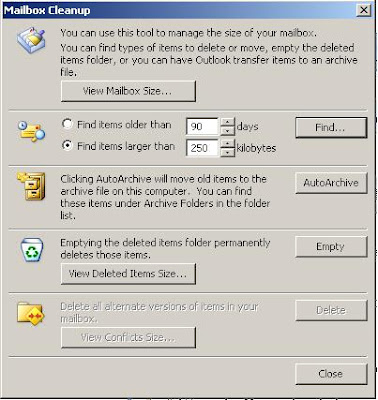
4# Mail Box Clean Up
Mailbox clean up can be used to detect the size of the current inbox and remove the emails that you do not use.
you can check the sizes of each email folder - you know which folder is needed to be treated.
Find the emails by size.
Empty the Deleted Item folder.
Go to Tools > Click on Mailbox Cleanup
5# Ways to Organize Inbox
There are three ways you can organise your inbox.
a. Using Folders
b. Using Colours
c. Using Views
These are quite helpful to organise your emails base on the importance of the email, sender or the situation.
go to Tools > click on Organize
We would like to see what other options you use to organise your Outlook inbox in comments.
Tuesday, April 21, 2009
[Outlook] Outlook 2003 Startup
Outlook is one of the commonly use email client program in business world. However, I am not sure how many individuals use it. So lets start Outlook2003 from scratch. After successful installation when you run Outlook2003 for the first time it will take you through a configuration process.

Click 'Next' to go to next window.
If you have already using Outlook Express it might give a upgrade option which will upgrade old configurations to suite Outlook 2003. If there is not any old email program select 'Do not upgrade' and click 'Next'.

Next window you can decide whether you want to configure email account or not. Select 'Yes' and click 'Next' to configure email account.

Select the Server Type.

(What is? ) Microsoft Exchange Server
(What is? ) POP3 email server
(What is? ) IMAP email server
(What is? ) HTTP email server
Base on your requirements select the email server you required. If you have your own email server from a web hosting company they will provide you the server details you required for the configuration.
Hotmail POP3 Settings (Microsoft Live)
After applying the configuration correctly click finish to exit from the process. Now Outlook2003 is ready to use. This is a very basic post and I am happy to see your problems and hacks related to outlook in the comments.
Friday, March 20, 2009
Similar to the Recall feature in Outlook?
Official Gmail Blog: New in Labs: Undo Send
Gmail recently added UNDO sent feature. Very interesting!
But I wonder if this is similar to the recall feature in Outlook which can be cheated. i.e. The recipient can still read the email sent.
Gmail recently added UNDO sent feature. Very interesting!
But I wonder if this is similar to the recall feature in Outlook which can be cheated. i.e. The recipient can still read the email sent.
Labels:
Email Hack,
Gmail,
Google,
Microsoft,
Outlook

Thursday, January 22, 2009
[Outlook 2003] How to fix incorrect sent time
 Recently I come cross this wired issue with Outlook 2003. When I sent an email to someone it actually shows a wrong sent time. It affect badly when you try to send a new appointment. It will go with wrong timing. Computer time, Computer time zone, email server time is correct. Email receive time is correct as well. Where is the problem? How to fix it?
 Fix is quite simple. This occurs simply because you have unchecked the "Automatically adjust clock for daylight saving changes".
Double click on the computer clock (task bar) and go to "Time Zone" tab and check the "Automatically adjust clock for daylight saving changes" check box and click "Apply" and then "OK". This will fix the issue. It is always better to give a restart to your computer and outlook2003.
Labels:
Outlook
Friday, January 16, 2009
[Email] POP3 settings for Microsoft Live Hotmail
After a long waiting time finally microsoft decide to give POP3 access to Microsoft Live Hotmail. Now you can directly configure your hotmail account with Microsoft Outlook or any other email client program. There were couple of methods before but non was standard or reliable or free.
Here is the POP3 settings for Microsoft Live (Hotmail)
- POP3 Server: pop3.live.com (port 995)
- SMTP Server: smtp.live.com (port 25)
Note: Please make sure to check the box that indicates that your outgoing server requires authentication (in most e-mail clients, this is not checked by default).
- Username: your full e-mail address
- Password: your Windows Live ID password
More details can be found in Send and Receive Windows Live Hotmail emails from a Mail Client
Tuesday, December 2, 2008
Outlook Basic: How to add exchange server
You can setup Exchange server in Outlook 2003 simply by following the steps. First close the outlook otherwise it will not let you add exchange server account to your emails account.
Open Control Panel
(Double click) Mail
(Select) Email Account
(Select) Add a new e-mail account
(Select) Microsoft Exchange Server
In Exchange server settings window fill –
Microsoft Exchange Server –
Username –
Click Check Name ( have to login to the server use the email address as the login name and the password )
You should be able to get the Exchange server setting from email service provider if they support it.
Click next ( Message If you wish to keep your mail on your server, you must change the default delivery location using the E-Mail Account command from the Tool menu )
Click Finish
Now you have successfully added the exchange server account to Outlook 2003
Labels:
Exchange Server,
Outlook
Thursday, September 18, 2008
Use outlook to send email from any email account
I have notice outlook have this funny email hack that allows you to send emails from any email address you want. It can be your friends email address or billgates@microsoft.com or any email address you can think of.
How it works?
First you should have a POP3 enabled email account. If do not have POP3 enabled email account, you can create one from Gmail for free. Set up your POP3 account to work with Outlook and I am not going to tell how to set up an email account in outlook here.
Then you need to do a simple change which will let you email from any email you want to.
Go to Tools >
Email Accounts >
View Email Accounts Details >
Then change your name and Email Address as shown in the picture.
How simple is that. I think this is not a big security issue but someone can misuse it. Please do not misuse it but you can have bit of fun. This works in all Outllook versions.
How it works?
First you should have a POP3 enabled email account. If do not have POP3 enabled email account, you can create one from Gmail for free. Set up your POP3 account to work with Outlook and I am not going to tell how to set up an email account in outlook here.
Then you need to do a simple change which will let you email from any email you want to.
Go to Tools >
Email Accounts >
View Email Accounts Details >
Then change your name and Email Address as shown in the picture.
How simple is that. I think this is not a big security issue but someone can misuse it. Please do not misuse it but you can have bit of fun. This works in all Outllook versions.
Labels:
Email Hack,
Outlook
Subscribe to:
Posts (Atom)
