Windows Defender starts giving out the following error while it tries to start.
Application failed to initialize: 0x800106ba. A problem caused Windows Defender Service to stop. To start the service, restart your computer or search Help and Support on how to start a service manually.
Windows XP
Go to Start
Go to Control Panel
Click Administrative Tools
Windows Vista
Search Start Administrative Tools
Click Administrative Tools
Double click on the Services
Find the windows Defender Service
Double click on it to open Windows Defender Properties
Change the Start up type to Automatic
Click Start button to start the service.
Click Apply Button
Restart the computer.
Now you have fixed the problem that caused Windows Defender to stop running properly.
Windows Defender is software that helps protect your computer against pop-ups, slow performance, and security threats caused by spyware and other unwanted software by detecting and removing known spyware from your computer. Windows Defender features Real-Time Protection, a monitoring system that recommends actions against spyware when it's detected, minimizes interruptions, and helps you stay productive.

Showing posts with label Windows Vista. Show all posts
Showing posts with label Windows Vista. Show all posts
Monday, January 18, 2010
Thursday, October 1, 2009
Microsoft Security Essential Installation Error
I have been getting a installation error for the Microsoft Security Essential that was recently released by Microsoft for free.
 Error Code 0x80070643
OS: Microsoft Vista 32 bit
No idea why it is giving the error cannot find much help still. Will be Updated as we progress with it. However, it will be a Technology Industry Trends.
Labels:
Microsoft,
Windows Vista

Wednesday, September 30, 2009
Free Antivirus for Genuine Windows
Microsoft Security essentials released a free antivirus for any genuine Windows copy. It will provide real time protection for your home PC and protect it from virus, spyware and malware threats. If you have a genuine copy you can download it for free.
System Requirements
Operating System: Genuine Windows XP (Service Pack 2 or Service Pack 3); Windows Vista (Gold, Service Pack 1, or Service Pack 2); Windows 7
For Windows XP, a PC with a CPU clock speed of 500 MHz or higher, and 1 GB RAM or higher.
For Windows Vista and Windows 7, a PC with a CPU clock speed of 1.0 GHz or higher, and 1 GB RAM or higher.
You can get free support and report any new threats via Microsoft Security essentials. I think this is a necessary step taken by Microsoft to provide a better security for their own operating system which is been mostly targeted by hackers, viruses and all sort of attacks. If you have a genuine Windows copy then you can download it for free from Microsoft Security essentials. Its performances and look and feel will be updated as we tested it by our self soon.
System Requirements
Operating System: Genuine Windows XP (Service Pack 2 or Service Pack 3); Windows Vista (Gold, Service Pack 1, or Service Pack 2); Windows 7
For Windows XP, a PC with a CPU clock speed of 500 MHz or higher, and 1 GB RAM or higher.
For Windows Vista and Windows 7, a PC with a CPU clock speed of 1.0 GHz or higher, and 1 GB RAM or higher.
You can get free support and report any new threats via Microsoft Security essentials. I think this is a necessary step taken by Microsoft to provide a better security for their own operating system which is been mostly targeted by hackers, viruses and all sort of attacks. If you have a genuine Windows copy then you can download it for free from Microsoft Security essentials. Its performances and look and feel will be updated as we tested it by our self soon.
Labels:
Virus scanner,
Windows 7,
Windows Vista,
Windows XP
Wednesday, September 9, 2009
How to schedule a task / batch in Vista
Scheduling some of the regular tasks in XP had made my life a lot easier. Now, myself, a happy XP user, was forcibly converted to a Vista user.
Schedule Tasks in XP were set up via Control Panel -> Schedule Tasks.
Exploring Control Panel in Vista, I found no such joy! After a bit of exploring, I found the Task Scheduler. Here is how you can get there...
Right click on "Computer" and click on "Manage"
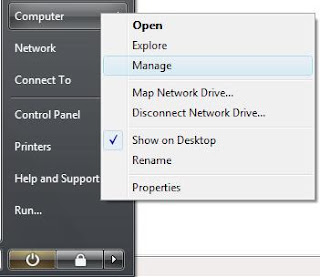
And you will see "Task Scheduler" listed in the left hand window under the "System Tools". Now you can set up those schedule tasks in Vista that you always had wanted to...
Schedule Tasks in XP were set up via Control Panel -> Schedule Tasks.
Exploring Control Panel in Vista, I found no such joy! After a bit of exploring, I found the Task Scheduler. Here is how you can get there...
Right click on "Computer" and click on "Manage"

And you will see "Task Scheduler" listed in the left hand window under the "System Tools". Now you can set up those schedule tasks in Vista that you always had wanted to...
Labels:
Scheduler,
System Tools,
Windows Vista
Tuesday, September 1, 2009
Buying a Laptop Computer or Netbook
It is not an easy task to buying a laptop computer. Not just because of the price of the price of the laptops but comparing the features with the prices will easily makes you feel lost. Do not forget that cheap new notebook have new member. Netbooks are cheaper and portable. So how you decide which laptop, desktop or netbook to buy.
How much you can or willing to spend on your new computer, laptop or netbook comes first. Without proper budget you will easily get lost because you can buy one for $500 as well as for more than $5000. I will leave it with you.
Before you go any further spend couple of minutes to go through the hardware requirements and operating system you would prefer. At this stage you will get Windows Vista
or XP with your laptop and soon Windows 7 would be available. In terms of hardware it is Screen Size, RAM, Hard disk space, Processor and video and sound card would be main components you need to think of.
Then it would be better to decide you want to buy a desktop, laptop or netbook. You might need to answer couple of usability question before you make the decision.
* Do I want it to be portable?
* Do I want 5-6 hours of battery life?
* Do I want to use it mainly for internet browsing and access documents and Excels?
* Will I not constantly use it for couple of hours?
* Do I have another computer?
* 1GB - 2GB RAM is quite enough?
If you answer yes to most of the above questions then I would recommend you to go for a netbook which is cheaper, extremely portable and quite handy to take it when you travel. Not recommended for constantly using for longer hours.
* I want to it to be portable?
* I do not really worried about the battery life?
* I want to run couple of general applications and some photo editing applications?
* I will use it for hours and hours?
* I want more RAM and disk space to be used?
Then it is ideal to buy a laptop base on your hardware requirements. You can upgrade/downgrade RAM and hard drive base on your requirement and budget. With netbooks it is bit hard to work for longer hours as the screen is smaller.
Try to keep your requirements simple. Otherwise new models will add to the market and you will never end up buying a new computer but wasting your time going through specifications and requirements.
Do not forget to share your experience buying a new laptop, computer or netbook...
![Reblog this post [with Zemanta]](https://lh3.googleusercontent.com/blogger_img_proxy/AEn0k_vgzjPvC3P5lg3n-8k11LaWO_EOO1dGZKvqYwPY74IRKWZ1-EqtVEQCjdmqpn87hiUyKSdcCq7MHcUucUTDtSRK8k-D_14e3M4uBJcFzI1LTJVZCcvpAdt37822kVxh1WeVHW_zOcQugho8__-mEgnF=s0-d)
How much you can or willing to spend on your new computer, laptop or netbook comes first. Without proper budget you will easily get lost because you can buy one for $500 as well as for more than $5000. I will leave it with you.
Before you go any further spend couple of minutes to go through the hardware requirements and operating system you would prefer. At this stage you will get Windows Vista
or XP with your laptop and soon Windows 7 would be available. In terms of hardware it is Screen Size, RAM, Hard disk space, Processor and video and sound card would be main components you need to think of.
Then it would be better to decide you want to buy a desktop, laptop or netbook. You might need to answer couple of usability question before you make the decision.
* Do I want it to be portable?
* Do I want 5-6 hours of battery life?
* Do I want to use it mainly for internet browsing and access documents and Excels?
* Will I not constantly use it for couple of hours?
* Do I have another computer?
* 1GB - 2GB RAM is quite enough?
If you answer yes to most of the above questions then I would recommend you to go for a netbook which is cheaper, extremely portable and quite handy to take it when you travel. Not recommended for constantly using for longer hours.
* I want to it to be portable?
* I do not really worried about the battery life?
* I want to run couple of general applications and some photo editing applications?
* I will use it for hours and hours?
* I want more RAM and disk space to be used?
Then it is ideal to buy a laptop base on your hardware requirements. You can upgrade/downgrade RAM and hard drive base on your requirement and budget. With netbooks it is bit hard to work for longer hours as the screen is smaller.

Try to keep your requirements simple. Otherwise new models will add to the market and you will never end up buying a new computer but wasting your time going through specifications and requirements.
Do not forget to share your experience buying a new laptop, computer or netbook...
Saturday, June 13, 2009
When will be Microsoft Windows 7 released?
Microsoft Corp said on Tuesday ( 2nd of June 2009) its new Windows 7 operating system will be generally available on October 22, well ahead of its original schedule and in time for the holiday shopping season.
The new operating system, which will replace the unpopular Vista, was originally planned for roll-out at the beginning of next year, but Microsoft confirmed last month that it would hit the market in time for the year’s busiest buying period.
Microsoft said it will send Windows 7 code to PC makers to load onto new machines — known in the industry as “release to manufacturing” — around the end of July.
By October 22, people will be able to buy new computers with Windows 7 installed, or pick up the software off the shelf to install on their old computers.
Microsoft confirmed that it will run a program whereby people who buy PCs with certain versions of Vista before October 22 can get a free upgrade to Windows 7, but it has not yet released details.
The new operating system, which will replace the unpopular Vista, was originally planned for roll-out at the beginning of next year, but Microsoft confirmed last month that it would hit the market in time for the year’s busiest buying period.
Microsoft said it will send Windows 7 code to PC makers to load onto new machines — known in the industry as “release to manufacturing” — around the end of July.
By October 22, people will be able to buy new computers with Windows 7 installed, or pick up the software off the shelf to install on their old computers.
Microsoft confirmed that it will run a program whereby people who buy PCs with certain versions of Vista before October 22 can get a free upgrade to Windows 7, but it has not yet released details.
Labels:
Microsoft,
Operating System,
window,
Windows 7,
Windows Vista
Wednesday, June 3, 2009
Windows Hack - Hack SendTo right click menu - Works for XP/Vista etc.
Have you ever needed to modify the "send to" items under ur right-click menu?
Microsoft's Windows Shell is probably the easiest way to modify the sendto, Windows Shell also serves as a shortcut to serveral commanly used commands and directories.
This is one of the features of windows which isn't widely known.
To modify "sendto" follow the steps:-
1) Open Windows Explorer
2) In the Location Bar type shell:sendto
3) Hit Enter
That's it! Add/Remove any item as you please and it will change the items in send to under your right-click menu accordingly.
You can also use several other shell commands such as
( Please note: You will use them as shell:command . Some of these commands work only in Vista and is not supported in XP)
AddNewProgramsFolder (i.e shell:addnewprogramsfolder)
Administrative Tools
AppData
AppUpdatesFolder
Cache
CD Burning
ChangeRemoveProgramsFolder
Common Administrative Tools
Common AppData
Common Desktop
Common Documents
Common Programs
Common Start Menu
Common Startup
Common Templates
CommonDownloads
CommonMusic
CommonPictures
CommonVideo
ConflictFolder
ConnectionsFolder
Contacts
ControlPanelFolder
Cookies
CredentialManager
CryptoKeys
CSCFolder
Default Gadgets
Desktop
Downloads
DpapiKeys
Favorites
Fonts
Gadgets
Games
GameTasks
History
InternetFolder
Links
Local AppData
LocalAppDataLow
LocalizedResourcesDir
MAPIFolder
My Music
My Pictures
My Video
MyComputerFolder
NetHood
NetworkPlacesFolder
OEM Links
Original Images
Personal
PhotoAlbums
Playlists
PrintersFolder
PrintHood
Profile
ProgramFiles
ProgramFilesCommon
ProgramFilesCommonX86
ProgramFilesX86
Programs
Public
PublicGameTasks
Quick Launch
Recent
RecycleBinFolder
ResourceDir
SampleMusic
SamplePictures
SamplePlaylists
SampleVideos
SavedGames
Searches
SendTo
Start Menu
Startup
SyncCenterFolder
SyncResultsFolder
SyncSetupFolder
System
SystemCertificates
SystemX86
Templates
TreePropertiesFolder
UserProfiles
UsersFilesFolder
Windows
Administrative Tools
AppData
AppUpdatesFolder
Cache
CD Burning
ChangeRemoveProgramsFolder
Common Administrative Tools
Common AppData
Common Desktop
Common Documents
Common Programs
Common Start Menu
Common Startup
Common Templates
CommonDownloads
CommonMusic
CommonPictures
CommonVideo
ConflictFolder
ConnectionsFolder
Contacts
ControlPanelFolder
Cookies
CredentialManager
CryptoKeys
CSCFolder
Default Gadgets
Desktop
Downloads
DpapiKeys
Favorites
Fonts
Gadgets
Games
GameTasks
History
InternetFolder
Links
Local AppData
LocalAppDataLow
LocalizedResourcesDir
MAPIFolder
My Music
My Pictures
My Video
MyComputerFolder
NetHood
NetworkPlacesFolder
OEM Links
Original Images
Personal
PhotoAlbums
Playlists
PrintersFolder
PrintHood
Profile
ProgramFiles
ProgramFilesCommon
ProgramFilesCommonX86
ProgramFilesX86
Programs
Public
PublicGameTasks
Quick Launch
Recent
RecycleBinFolder
ResourceDir
SampleMusic
SamplePictures
SamplePlaylists
SampleVideos
SavedGames
Searches
SendTo
Start Menu
Startup
SyncCenterFolder
SyncResultsFolder
SyncSetupFolder
System
SystemCertificates
SystemX86
Templates
TreePropertiesFolder
UserProfiles
UsersFilesFolder
Windows
Labels:
Hack,
hack howto,
How To,
Microsoft,
tips,
Windos Xp,
Windows 2008,
Windows 7,
Windows Vista
Saturday, April 11, 2009
[Basic] why do you need to zip a file?
Simple steps to zip a file using Microsoft windows XP (or Windows Vista) standard Zip File
 1. Right click on the folder which you need to zip
You can select a group of files you need to zip and right click as well.
2. select "send to" and click on "Compressed (zipped) Folder.
3. then you can see the new zip file with the same filename.zip
steps to unzip a file
1. right click on the file which you want to unzip and select extract or extract here.
2. then you can see the extracted file with the same name.
advantages of zipping files.
1.when you email a file it reduces the time to attach and transfer
2.when you download ,it will be faster
3.it will save your space of the hard disk
4.Easy to send a collection of files via email, ftp or through websites like yousendit as you only need to send one file instead of couple of files.
There are lot of free and paid software to compress files. What would be the best software to use. It depends on your requirement.
For example if you are trying to send some files to your friend.
1. You need to consider about the compatibility.
That means if you used really good compression tool but if your friends does not have it your friend will not be able to unzip the file. You always need to use a standard (common) and better file compress tool to zip your files.
2. Mention the Software name and the link to download the software. So in any case your friend does not have the software he can install it.
If you are planning to archive your files and save space. Always better to use software that compress the files well and you need to make sure compression process did not corrupt your files. Before you delete the original file unzip the sipped files and randomly check the files are in good condition.
Softwares Available for Compress files
What do you use to compressfiles?
Labels:
Basic,
Compres files,
Windows Vista,
Windows XP
Wednesday, April 8, 2009
What is Conflicker Worm

Three simple steps you should take to prevent any attack from Conflicker Worm.
1. Install a proper antivirus and anti-spyware software.
2. Update your antivirus and anti-spyware definition files to the latest available.
3. Update your Windows to the latest security patch.
Not only to prevent Conflicker worm but to prevent from any virus or worm these three steps will be a great practice.
Labels:
Trojan,
Virus,
Windows Vista,
Windows XP
Monday, April 6, 2009
[Windows Error]The description for Event ID ( 7 ) in Source ( Disk ) cannot be found
Computer slows down and couple of programs such as Internet Explorer and Outlook start crashing most of the time. In the Event log it keeps on giving the following error.
Error
The description for Event ID ( 7 ) in Source ( Disk ) cannot be found. The local computer may not have the necessary registry information or message DLL files to display messages from a remote computer. You may be able to use the /AUXSOURCE= flag to retrieve this description; see Help and Support for details. The following information is part of the event: \Device\Harddisk0\D.
It seems like the Hard Drive is having some issues such as bad sectors or it may die sooner.
First Step - Back up
Back up all the important information you have to a external device such as DVD, External Hard drive or a online storage.
Second Step - Hard drive error Checking
 Right click on the Hard Drive that you are having issues with. Most of the case it will be the Hard Drive that Windows is installed. Select Properties and then go to Tools. Under Error Checking Press "Check Now" Button.
It will open a small windows.
Select Automatically Fix File System Errors and Scan for and attempt to recovery of bad sectors.
and then click start.
Most probably you will get the message saying
The disk check could not be performed because the disk check utility needs exclusive access to some Windows file on the disk.
Click Yes so it will start when you restart your computer next time.
Restart the computer and it will start checking the file system. It may take some times.
I will update the result as it finish error checking.
(Update)
Acctually after the second step it fix the
"The description for Event ID ( 7 ) in Source ( Disk ) cannot be found" error.
Error
The description for Event ID ( 7 ) in Source ( Disk ) cannot be found. The local computer may not have the necessary registry information or message DLL files to display messages from a remote computer. You may be able to use the /AUXSOURCE= flag to retrieve this description; see Help and Support for details. The following information is part of the event: \Device\Harddisk0\D.
It seems like the Hard Drive is having some issues such as bad sectors or it may die sooner.
Back up all the important information you have to a external device such as DVD, External Hard drive or a online storage.
Second Step - Hard drive error Checking
Right click on the Hard Drive that you are having issues with. Most of the case it will be the Hard Drive that Windows is installed. Select Properties and then go to Tools. Under Error Checking Press "Check Now" Button.It will open a small windows.
Select Automatically Fix File System Errors and Scan for and attempt to recovery of bad sectors.
and then click start.
Most probably you will get the message saying
The disk check could not be performed because the disk check utility needs exclusive access to some Windows file on the disk.
Click Yes so it will start when you restart your computer next time.
Restart the computer and it will start checking the file system. It may take some times.
I will update the result as it finish error checking.
(Update)
Acctually after the second step it fix the
"The description for Event ID ( 7 ) in Source ( Disk ) cannot be found" error.
Labels:
error,
Hardware,
Windows Vista,
Windows XP
Tuesday, March 17, 2009
[Basic Hack] Increase / Relocate the Paging File
Increasing the size of the page file will speed up you computer a bit and allowing you to run some heavy weight programs that use lot of virtual memory. It is a quite simple process.

Go to Control Panel
Click "system"
Go to "Advance" tab
Click "Setting" button under performance
Under Performance Option go to "Advance" tab
Click "Change" Button under Virtual Memory
If you are having couple of drives you can change the drive by simply highlighting the drive.
If you need to increase the virtual memory
select "Custom Size"
specify the Initial Size and the maximum size. Just make sure specify these values between the recommended virtual memory.
In Windows Vista the process is same as Windows XP.
Labels:
Windows Vista,
Windows XP
Tuesday, January 13, 2009
Windows Vista vs Windows 7
Here's a video on which one of the two is faster - faster boot time..
And the winner is....... WINDOWS 7
And the winner is....... WINDOWS 7
Labels:
Windows 7,
Windows Vista
Friday, December 19, 2008
How to change the Driver Letter and the Path

Changing the driver letter path and the letter did not change from windows XP to Windows Vista. If you are using large external hard drives USB memory sticks this will be handy. Sometimes when you connect hard drives to computers it get confuse and unable to display the driver letter.
Steps to add change the driver letter
(You can follow the same steps in Windows Vista and XP)
Go to Control Panel
Go to Administrative Tools
Go to Computer Management
Select Disk Management under Storage
It will show all the hard drive partitions and external Hard Drives. If it had problems assigning a letter you can manually give one by right click on the partition and by selecting
"Driver Letter and Path"
It will give options to Add, Change or Remove a driver letter. It is actually manually mounting hard drive in Windows.
Labels:
Windows Vista,
Windows XP
Wednesday, December 3, 2008
Windows Vista & Windows Server 2008 Service Pack 2 Out
If you use Windows Vista or Windows server 2008 and if you like to try out beta versions this will be a good news. According to Windows Team Blog Microsoft is planing to release both Service packs on 4th December which is tommorow. It will be avalable in TechNet for everyone eventhough they highly recomend beta version only for technology enthusiasts, developpers and IT pros as there might be things to be fixed and finalize before the final release.
Still if you like to try it out you can download Windows Vista Service pack2. Download Link will be avalable as it release.
Labels:
Beta,
Service Pack2,
Windows 2008,
Windows Vista
Sunday, November 30, 2008
Find Missing .DLL Files
This is another useful website I have come cross during the weekend. It has .dll file for almost all the windows versions. Next time if you are getting an error or having any issues with a .dll file dll-downloads.com might be a the site to look for.
Not only the .dll files but you can find .OCX and .DRV files for any windows version s well.
Missing Micosoft Windows dll files gives a good explanation of how to fix missing .dll files errors. Next time when you come cross .dll files missing error you will be able to fix it without any problem.
Labels:
Windows Vista,
Windows XP
Saturday, July 19, 2008
How to Hack Windows XP or Hak Windows Vista Cont.
I have generally talk about couple of issues and ideas related to retrieve windows XP or windows vista password in one of my last post (How to Hack Windows XP or Hack Windows Vista). Ok In this I will tell you one of the cool softwares you can use to do that. Before that I must tell you this software works only if you have physical access to the computer. Believe me if someone has physical access to your computer you cannot protect your data been copied or been destroyed. Therefore, this piece of software will not do any harm but help you to save your day when you forget your windows XP or windows vista password.
Another reason to introduce this software is I used it personally and it works 100% and it is 100% free. Most of the Google results you get is fake or infected with something. Ophcrack is the magical software that let you retrieve your lost windows vista or windows XP password.
Ophcrack XP LiveCD (ophcrack-xp-livecd-2.0.1.iso) will come on handy if you cannot even login to your computer. Download the iso image and burn it to a cd using nero or any other CD burning software and boot your computer using the CD. It will auto run the program and retrieve your password but it will take bit of time.
Ophcrack Vista LiveCD (ophcrack-vista-livecd-2.01.iso) is the one you should download if you are trying to hack into windows vista computer.
They have release the ophcrack 3.0.1 and ophcrack LiveCD 3.0.1 is released. It can be used for Mac OS X as well according to Ophcrack news release. However, still I could not find any download link for ophcrack 3.0.1.
Next time you can hack into your computer in any case you forgot your password or someone else change your password. I don’t want to tell you can hack into someone’s computer as well. But just do it for fun don’t miss use it.
Another reason to introduce this software is I used it personally and it works 100% and it is 100% free. Most of the Google results you get is fake or infected with something. Ophcrack is the magical software that let you retrieve your lost windows vista or windows XP password.
Ophcrack XP LiveCD (ophcrack-xp-livecd-2.0.1.iso) will come on handy if you cannot even login to your computer. Download the iso image and burn it to a cd using nero or any other CD burning software and boot your computer using the CD. It will auto run the program and retrieve your password but it will take bit of time.
Ophcrack Vista LiveCD (ophcrack-vista-livecd-2.01.iso) is the one you should download if you are trying to hack into windows vista computer.
They have release the ophcrack 3.0.1 and ophcrack LiveCD 3.0.1 is released. It can be used for Mac OS X as well according to Ophcrack news release. However, still I could not find any download link for ophcrack 3.0.1.
Next time you can hack into your computer in any case you forgot your password or someone else change your password. I don’t want to tell you can hack into someone’s computer as well. But just do it for fun don’t miss use it.
Labels:
Hack,
Windows Vista,
Windows XP
Subscribe to:
Posts (Atom)
