Showing posts with label tips. Show all posts

Monday, April 26, 2010

The easiest way to rebuild your PC!

Have you recently bought a PC or a laptop and wished you had all your favorite softwares installed in one hit so you do not have to find the latest installer version, remember most popular softwares that you have using, download the installation, install the software etc.. etc..

I have found a great software that does all this in one simple click. As described by the software vendor - you can rebuild your PC in three easy steps

1. Pick your favorite software (s) from their website http://ninite.com/
2. Click "Get Installer" and run it
3. You're done!

The software is free to use and there is a pro version for advance features such as offline mode.

Leave comments below if you have tried it or any other similar softwares.

Monday, February 15, 2010

Running CPU temperature that is safe for your Netbook is ~50c

Well the maximum temperature before your CPU is in immediate threat of being deep fried is 90c for most of the Intel Atom chips that are present in Netbooks.. I would no where recommend testing that limit on your cpu.

It is important for your system's health to keep it cool. Cooling also helps with longer battery life I suppose.

I always tend to keep my eee pc under 45c but on some occassions it heats upto 56c where I start closing the used applications taking up CPU cycles.

Also, I use applications like HDD Health and Speed Fan to monitor the temperature as it seems to work with most of the CPUs.

Friday, September 18, 2009

Quickly find out when Windows was last shutdown/rebooted

Every wondered to find out when your desktop was shutdown or rebooted by your mischievous sibling?

Here's a quick way

To find out last reboot
1) Open command prompt and type in

net statistics workstation | more

The second line will say


Statistics since ....

You can find out since when the machine is up

To Find out last shutdown

The easiest way to determine the last shutdown date/time is to check the event logs. When you shutdown a computer Event ID 6006 is written to the Event log which denotes a clean shutdown.

Sunday, August 9, 2009

Windows7 Task Bar Hacks

This is the first post posted from Windows7. I thought of starting from the task bar as it is one of the place you frequently use in Windows Operating System (OS). Many says Windows7 task bar is user friendly and way better than the Windows Vista task bar. I agree with that. It always stays clean even after opening so many applications. It give more ways to access your programs as well as files without much problem while keeping all the previous (Windows XP and Vista) functions that you used before.
Windows 7 Task bar can be divide into two parts just like all the other Windows task bars.
Left Hand Side - Start Button and the Quick Launch button and open windows.
Right Hand Side - Notification area with Show desktop.
You can see lot of improvement from left hand side comparing the Windows Vista. Beside the Start button by default you can see three icons for Internet Explorer, Library Folder and Windows Media Player that acts like quick launch buttons.
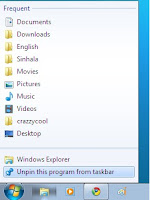
To add any other frequently used program by drag and dropping the the short cut to the task bar from desktop or any other folder.To delete these buttons from right click on the task bar button you want to remove and click Unpin this Program from taskbar.Also you can see the recently/frequently opened files by right click on the task bar button. Or by holding the mouse on the button and move the cursor upwards.All the open programs will go under each bottom and moving the mouse over each button will show the open windows. You can switch between the the windows or close them.
Clicking on the bottom will minimise and maximise the open windows or open new instance if there is no open program.
Pretty much in Windows7 you can handle all the windows functions from the taskbar buttons.

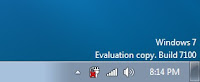
Right hand side of the taskbar is same as old except for having a dark grey area after the clock which will show desktop as you click on it.
Task bar properties can be accessed by right click on the task bar and click on the properties. It give the options to
Lock the taskbar
Auto hide taskbar
Use smal icon
Taskbar location of your screen
Customise which notification icons appear in the notification area.

So far I am enjoying the Windows7 and will update with Windows7 hacks and tricks as we come cross. You can always add up more.

Saturday, July 11, 2009

How to recover Windows Password in 10 steps

Here are the 10 steps to successfully recover a lost Windows Password

  1. go to http://ophcrack.sourceforge.net/
  2. download the iso image
  3. burn the iso image to a cd
  4. reboot the computer with the cd in the drive to start the program on the CD
  5. select ophcrack Graphic mode from the Menu that appears after the reboot
  6. the software will now automatically start scanning for password for all the users on the computer
  7. the password will be revealed for the users as it is cracked.
  8. close the ophcrack application, shutdown the pc and remove the cd
  9. restart and load windows
  10. enter the username and password on the login screen and you have recovered the password :)


Thursday, July 2, 2009

Simple method to save money

Everyone wants to earn extra money. But not may people actually wants to save money. Saving money does not mean that you need to suffer by cutting all your enjoyments. Main goal should be to save money while you enjoy your life and without any extra stress.

What would be the key hacks to save money?
  • Simple Budget
  • Achievable Short Term Goals for Saving Money
  • Achievable Long Term Goals for Saving Money

Simple Budget is the most important part of saving money. Why?
  • Complicated Budget will be hard to follow. It added extra stress on you. and will not last long. That is one of the biggest mistake that you can do when it comes to arrange a budget.
Tips to create a simple budget
  • Always give a higher value than the actual value to the expenses. For example if you averagely spend $250 for food make it $270 in your Budget. Always average value will not work.
  • Always give a less value for the income. This is just to be Safe and leave a margin for any extra expenses or unexpected expenses.
  • More the information you have about your spending better you can setup your budget. You can always record your spending in a Excel under different categories. If you use (normally you do) bank card or credit card you can go through couple of statements to get more information about your spending patterns.
  • You will have only hand full of income types. If you have more just take the main income methods. So you will always have the extra money to fund your needs.
  • Always start with main categories - Spending can be categories to Savings Food and house hold items, Entertainment, Bills, rent or mortgage and etc..
    when you are familiar with your budget you can always break it into sub categories which will give you more control.
  • Base on your last couple month expenses you can allocate funds to each budget. Specify when you allocate them or from which income you will allocate it (if you have two or more incomes)

    For example - If you get weekly income you can allocate for food in first week. Second third and fourth weeks you will allocate funds to savings, entertainment and rent. etc.

    If you get a monthly income you do not have much options. You have to settle all your budget in the pay day.
  • Don't be scared to change your budget as you go. It always needed to be tweaked base on your experience and problems you might face when following your budget.
Achievable short term and long term goals will make your money saving exercise interesting as you will be self motivated as you achieve goals. Always keep your short term goals small. As you achieve them one by one you can always make them higher and higher as you understand your capabilities. In that way it will be a strength to archive higher long term goals without much trouble and stress.

What are your money saving hacks tricks and tips? If they are not secrets you are always welcome to share it.

Wednesday, June 3, 2009

Windows Hack - Hack SendTo right click menu - Works for XP/Vista etc.

Have you ever needed to modify the "send to" items under ur right-click menu?

Microsoft's Windows Shell is probably the easiest way to modify the sendto, Windows Shell also serves as a shortcut to serveral commanly used commands and directories.

This is one of the features of windows which isn't widely known.

To modify "sendto" follow the steps:-
1) Open Windows Explorer
2) In the Location Bar type shell:sendto
3) Hit Enter

That's it! Add/Remove any item as you please and it will change the items in send to under your right-click menu accordingly.

You can also use several other shell commands such as
( Please note: You will use them as shell:command . Some of these commands work only in Vista and is not supported in XP)

AddNewProgramsFolder (i.e shell:addnewprogramsfolder)
Administrative Tools
AppData
AppUpdatesFolder
Cache
CD Burning
ChangeRemoveProgramsFolder
Common Administrative Tools
Common AppData
Common Desktop
Common Documents
Common Programs
Common Start Menu
Common Startup
Common Templates
CommonDownloads
CommonMusic
CommonPictures
CommonVideo
ConflictFolder
ConnectionsFolder
Contacts
ControlPanelFolder
Cookies
CredentialManager
CryptoKeys
CSCFolder
Default Gadgets
Desktop
Downloads
DpapiKeys
Favorites
Fonts
Gadgets
Games
GameTasks
History
InternetFolder
Links
Local AppData
LocalAppDataLow
LocalizedResourcesDir
MAPIFolder
My Music
My Pictures
My Video
MyComputerFolder
NetHood
NetworkPlacesFolder
OEM Links
Original Images
Personal
PhotoAlbums
Playlists
PrintersFolder
PrintHood
Profile
ProgramFiles
ProgramFilesCommon
ProgramFilesCommonX86
ProgramFilesX86
Programs
Public
PublicGameTasks
Quick Launch
Recent
RecycleBinFolder
ResourceDir
SampleMusic
SamplePictures
SamplePlaylists
SampleVideos
SavedGames
Searches
SendTo
Start Menu
Startup
SyncCenterFolder
SyncResultsFolder
SyncSetupFolder
System
SystemCertificates
SystemX86
Templates
TreePropertiesFolder
UserProfiles
UsersFilesFolder
Windows

Thursday, March 19, 2009

What are the latest features in iPhone OS version 3?

iPhone OS Version 3 beta was released on March 17th, 2009

the phone has added over 100 new features!!!

Here's a list of best and the greatest features that were newly added.

The beta version is available at - http://developer.apple.com/

Copy & Paste text
Copy & Paste photos
Find My phone - Uses GP to locate lost phone
New Spotlight. iPhone OS 3.0 will allow you to search across the entire information contained in your device
Search in Mail, Calendar, and iPod
3G Tethering. This feature will allow you to connect your iPhone 3G to a laptop
Landscape keyboard. Apple has added the landscape keyboard mode to other applications
Multimedia messaging
Support for new calendar types
Improved stocks application
Stereo Bluetooth A2DP audio
Note syncing with iTunes.
Automatic login in Safari
Shake to shuffle music
Wi-Fi auto-login
Anti-phishing
Extended parental controls
Voice memo application
Send and receive files
Peer-to-peer Bluetooth connectivity
Browse remote content
Use your iPhone/touch to control peripherals
Maps inside other applications
Turn-by-turn directions
Push notification finally coming
Voice communication in applications
Rumbling
Audio recording
Access your music from applications

PRICE

iPhone OS 3.0 will be a free upgrade to all iPhone users, including the first generation (not all features will be supported in the first generation, like Stereo Bluetooth support). iPod touch users will be able to but it for $US9.95.

Tuesday, March 17, 2009

How to Play FLV (Flash Video) Files in Windows Media Player?

How to Play FLV (Flash Video) Files in Windows Media Player?

By default Windows Media Player (WMP) will not play flv and report that it does not have the correct codecs to play it.

There are two options (either of these two will work)

1) Downloading codecs package such as K-Lite . K-Lite is a tremendous codecs package that supports for various file formats such as 3gp, mp4 etc. Almost any movie format that you can think of or find on the internet, K-Lite will have a codec to play it. Installing the package will enable Windows Media Player to decode and play the file.

K-lite can be downloaded from here

2) Download a simple FLV plugin for Windows Media Player with no extra bells and whistles. The plugin is very lightweight and does exactly what it says - Plays FLV files and nothing extra.

PlayFLV plugin can be downloaded from here

Sunday, December 7, 2008

Free Ways to Help

Visit the Hunger Site

At The Hunger Site, there are many free ways you can fight hunger and food insecurity.

Click every day.

Did you know you can click once a day, every day at The Hunger Site? That's 365 chances each year to help feed the hungry.

Send a free e-card.

Use our free e-cards to tell everyone you know — friends, family, colleagues — about The Hunger Site. The more people who click every day, the more we can help feed those in need.

Tell friends, family and colleagues about The Hunger Site.

By spreading the word, you'll help increase the number of visitors to The Hunger Site and the amount of funding generated for food. Word of mouth — telling 5 friends who tell 5 friends — is a powerful way to fight hunger.

Make The Hunger Site your home page and visit daily.

Another easy way to remember to click every day is to make The Hunger Site your home page.


Below is the table of results produced so far. Support the good cause.

DateClicksCups of FoodKilogramsMetric TonsPounds
200743,857,42849,612,6162,813,3042,813.36,201,577
200642,344,55147,849,1612,713,3072,713.35,981,145
200542,493,35248,017,4862,722,8512,722.96,002,186
200439,809,11445,278,3732,567,5292,567.55,659,797
200338,785,49043,827,6022,485,2622,485.35,478,450
200240,798,84446,102,6942,614,2722,614.35,762,837

Saturday, November 29, 2008

FREE File Conversion

Do you need to convert from PDF to DOC? DOC to PDF? MPG to AVI? WAV to MP3? or in hundreds of different format?

Well you can do it now using a free online webservice. You will not be required to install a single software on your computer! Now that is Crazzy as well as Cool!

Visit

http://www.zamzar.com/

Wednesday, November 26, 2008

Archive and Preserve any webpage or website

Archive and Preserve any webpage or have your own backup so next time when a webpage is taken down or the site disappear you still have a copy of it.

visit www.iterasi.com

follow these simple steps
  1. Create a free user account - all you really need an existing email address to signup
  2. Download a small bookmarklet into your browser. Google search for bookmarklets if you need more info about them. They are essential a bookmark which when you click on invokes a javascript which does all the talking to the server - in this case to the Iterasi server to capture the website you are currently visiting
  3. Go to the webpage you want to archive . e.g. https://crazzycool.blogspot.com/ and click on the bookmarklet that you downloaded from iterasi. You can add it to folders and also add tags to it for your organising purpose. Click OK and it will save the page on iterasi server in couple of seconds.
  4. Visit My Pages on Iterasi under your account and you can view any of the pages that you saved using the iterasi viewer. You have your own backup of the webpage!
No matter what changes happen on the webpage you will have your own backup or a snapshot forever!

Monday, August 11, 2008

Oracle 10g Hints for Performance Improvement

List of Oracle 10g Hints for the Oracle Optimizer so that you can dictate the execution plan of a query/statement..

Undocumented Hints ( You won't find this mentioned under Oracle Official documentation).. They are TOP Secret!


  • bypass_recursive_check
  • bypass_ujvc
  • cache_cb
  • cache_temp_table
  • civ_gb
  • collections_get_refs
  • cube_gb
  • cursor_sharing_exact
  • deref_no_rewrite
  • dml_update
  • domain_index_no_sort
  • domain_index_sort
  • dynamic_sampling
  • dynamic_sampling_est_cdn
  • expand_gset_to_union
  • force_sample_block
  • gby_conc_rollup
  • global_table_hints
  • hwm_brokered
  • ignore_on_clause
  • ignore_where_clause
  • index_rrs
  • index_ss
  • index_ss_asc
  • index_ss_desc
  • like_expand
  • local_indexes
  • mv_merge
  • nested_table_get_refs
  • nested_table_set_refs
  • nested_table_set_setid
  • no_expand_gset_to_union
  • no_fact
  • no_filtering
  • no_order_rollups
  • no_prune_gsets
  • no_stats_gsets
  • no_unnest
  • nocpu_costing overflow_nomove
  • piv_gb
  • piv_ssf
  • pq_map
  • pq_nomap
  • remote_mapped
  • restore_as_intervals
  • save_as_intervals
  • scn_ascending
  • skip_ext_optimizer
  • sqlldr
  • sys_dl_cursor
  • sys_parallel_txn
  • sys_rid_order
  • tiv_gb
  • tiv_ssf
  • unnest
  • use_ttt_for_gsets


Documented Hints

  • all_rows
  • first_rows
  • first_rows_1
  • first_rows_100
  • choose
  • rule
  • full
  • rowid
  • cluster
  • hash
  • hash_aj
  • index
  • no_index
  • index_asc
  • index_combine
  • index_join
  • index_desc
  • index_ffs
  • no_index_ffs
  • index_ss
  • index_ss_asc
  • index_ss_desc
  • no_index_ss
  • no_query_transformation
  • use_concat
  • no_expand
  • rewrite
  • norewrite
  • no_rewrite
  • merge
  • no_merge
  • fact
  • no_fact
  • star_transformation
  • no_star_transformation
  • unnest
  • no_unnest
  • leading
  • ordered
  • use_nl
  • no_use_nl
  • use_nl_with_index
  • use_merge
  • no_use_merge
  • use_hash
  • no_use_hash
  • parallel
  • noparallel / no_parallel
  • pq_distribute
  • no_parallel_index
  • append
  • noappend
  • cache
  • nocache
  • push_pred
  • no_push_pred
  • push_subq
  • no_push_subq
  • qb_name
  • cursor_sharing_exact
  • driving_site
  • dynamic_sampling
  • spread_min_analysis
  • merge_aj
  • and_equal
  • star
  • bitmap
  • hash_sj
  • nl_sj
  • nl_aj
  • ordered_predicates
  • expand_gset_to_union
Blog Widget by LinkWithin